- Freeze vs. Crash: What’s the difference?
- Quick troubleshooting checklist (what to try first)
- Overheating
- Software bugs (TV operating system)
- App issues
- Network problems
- USB device conflicts
- Firmware updates and rollback
- Power supply problems
- Factory reset: last resort
- Preventive maintenance and good habits
- Comparison: Common causes, symptoms, quick tests and fixes
- When to call professional support or seek repair
- FAQ
Why Does My TV Keep Freezing? (Causes and Solutions)
TV freezing is one of the most frustrating problems because it interrupts shows, movies, and game sessions without warning. This guide walks through the most common causes — how to identify each one and practical, step‑by‑step fixes you can try at home before calling support.
Freeze vs. Crash: What’s the difference?
First, know the distinction so you can narrow the root cause fast.
- Freeze: The picture or sound stops updating but the TV remains powered on. Remote may still wake menu overlays, but video is static. Often caused by software or input issues.
- Crash: The TV reboots, shows a boot logo, or powers off and on. This is more likely a firmware, power supply, or serious hardware fault.
Quick diagnostic tests
1. If the TV picture is stuck but audio continues or the LED is still on, treat it as a freeze.
2. If the TV suddenly restarts or turns off, treat it as a crash and focus on power and firmware.
Quick troubleshooting checklist (what to try first)
1. Power cycle: unplug TV for 60 seconds, press and hold power button on the TV (not the remote) for 10 seconds, then plug back in.
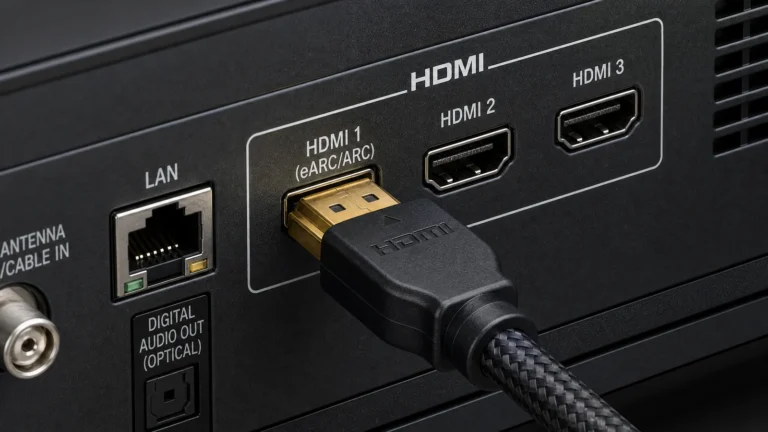
2. Change input: switch to a different HDMI input or to live TV. If only one input freezes, the problem may be that source.
3. Disconnect USB drives and external devices.
4. Run a network check: switch to Ethernet if possible or test with another device on the same Wi‑Fi.
5. Update firmware and apps.
If those basic steps don’t stop the behaviour, read the sections below.
Overheating
Why it causes freezing
- Long usage, blocked vents, or a hot room can raise internal temperatures. Thermal protection can throttle the processor or stop frame updates, causing freezes or a degraded picture.
Symptoms
- TV becomes unusually warm, fan (if present) runs loudly, picture freezes during extended playback or when high-brightness HDR content plays.
Practical fixes
1. Improve ventilation: move the TV out of enclosed cabinets, leave at least a few inches of clearance top and sides, and remove any fabric that traps heat.
2. Reduce ambient heat: avoid direct sunlight and keep room temperature lower during long sessions.
3. Turn off high‑performance picture modes: set picture mode to “Standard” or “Energy Saver”; disable features like “Dynamic Backlight” or extreme brightness boost.
4. Shorten continuous usage: give the TV a break after multiple hours.
5. If heat continues to be a problem, contact the manufacturer; recurring thermal issues can indicate failing internal components.
Software bugs (TV operating system)
Why it causes freezing
- Smart TV operating systems (WebOS, Tizen, Android TV/Google TV, Roku, proprietary systems) can encounter memory leaks, bad background processes, or scheduling bugs that cause the UI or playback to stall.
Signs
- Freezes occur regardless of input (apps and HDMI), freeze happens in UI menus or after long uptime, updates recently installed.
Step‑by‑step fixes
1. Reboot: full power cycle as described above.
2. Check for OS updates: Settings → System → Software Update. Install and reboot.
3. Clear app cache (if the OS supports it) or force‑stop problematic apps.
4. Disable experimental or developer options you’ve enabled.
5. If the OS supports a diagnostic or safe mode, run it to see if freezing stops.
6. If problems persist, consider a factory reset (see below), but back up any settings or app logins first.
App issues
Why it causes freezing
- Individual streaming apps (Netflix, Prime Video, YouTube, third‑party apps) can have bugs, incompatible updates, or corrupted caches that freeze playback even while the TV UI works.
How to isolate apps
1. Test native app: start the app that often freezes and reproduce the issue.
2. Try the same stream on a different device (phone or streaming stick) on the same network to rule out service-side issues.
3. Use a different app (e.g., YouTube vs. Netflix) to see whether the problem is app-specific.
App‑specific fixes
1. Update the app.
2. Sign out and sign back in.
3. Uninstall and reinstall the app.
4. Clear the app cache/data (if the platform permits).
5. If a particular app keeps freezing across multiple TVs, check provider status pages or community forums — sometimes the service has a bad app build.
Workaround
- If an app is persistently unstable on your TV, use an external streaming stick or game console as a temporary solution; these devices often get updates on different schedules.
Network problems
Why it causes freezing
- Buffering or frozen frames can be caused by insufficient bandwidth, Wi‑Fi interference, or packet loss. Smart TV apps expect sustained throughput; variable Wi‑Fi leads to pauses and frozen video.
Symptoms
- Video stalls during streaming, adaptive bitrate drops (lower resolution), or other devices also show slow performance.
Network troubleshooting
1. Test wired: connect the TV with Ethernet. If freezing stops, it’s a Wi‑Fi issue.
2. Run a speed test from the TV or another device. Aim for consistent bandwidth matching your streaming quality (e.g., 25 Mbps+ for 4K).
3. Reduce Wi‑Fi interference: move the router closer, switch to 5 GHz for less congestion, or change channel.
4. Check router QoS or rate limiting that might throttle streaming devices.
5. Restart router and modem. If using mesh, test with the main router node.
6. Update the TV’s network drivers/firmware if an update is available.
7. For smart TVs with Wi‑Fi 6/6E support, ensure your router’s settings are compatible (some TVs have trouble with certain advanced features enabled).
USB device conflicts
Why it causes freezing
- Faulty or incompatible USB drives, incorrectly formatted media, or corrupted files can cause the media player to hang or the OS to become unresponsive.
Signs
- Freezes occur when the USB drive is plugged in or when browsing files from USB. Removing the drive clears the issue.
How to fix
1. Remove all USB devices and test the TV.
2. Reformat the USB drive on a computer with a common filesystem (exFAT for large files across platforms) after backing up data.
3. Avoid using USB hubs; connect a single device directly.
4. Replace the drive if reformatting doesn’t help — cheap or aging flash memory can fail in ways that freeze devices.
5. If you need to use a drive for recordings, use recommended drive classes and sizes per the TV manufacturer.
Firmware updates and rollback
Why firmware matters
- Firmware controls core hardware interactions. Buggy updates can introduce freezes; conversely, running outdated firmware can leave known bugs unresolved.
Best practices
1. Always read the release notes before installing an update when possible.
2. Install official OTA updates from the manufacturer’s settings menu.
3. If a firmware update coincides with new freezes, check manufacturer forums and support channels; they may offer a hotfix or rollback procedure.
4. Do not install unofficial firmware builds; they can brick the TV.
Power supply problems
Why it causes freezing or crashing
- Unstable power, failing internal power supply boards, or poor-quality surge protectors can lead to intermittent freezes and reboots.
Symptoms
- Freezes accompanied by screen flicker, sudden shutdowns, or freezes that are resolved briefly when you wiggle the power cable.
Actions to take
1. Test the outlet: plug the TV into a different outlet and bypass extension cords.
2. Use a known-good surge protector or power conditioner.
3. If the TV uses an external power brick (uncommon but present on some models), try a replacement with matching specs.
4. For internal power supply issues, contact a qualified technician or the manufacturer. Do not open a TV unless you are certified.
Factory reset: last resort
When to do it
- Use a factory reset when software troubleshooting, app reinstalls, and updates haven’t fixed the problem. It returns the TV to a clean state and often resolves software‑related freezes.
How to prepare
1. Note account logins, Wi‑Fi password, and any pairing codes.
2. Understand this will erase apps, settings, and local recordings.
Typical reset steps (generic)
1. Settings → System → Reset → Factory data reset. Confirm and wait for the process to complete.
2. Reinstall only the apps you need first, update the TV software, and then test for freezes before restoring every app.
Caveats
- If freezing persists after a factory reset, the cause is more likely hardware (power, overheating) or a defective board — contact support for repair or replacement.
Preventive maintenance and good habits
- Keep firmware and apps updated regularly.
- Use Ethernet when possible for streaming.
- Avoid plugging multiple high‑draw devices into the same power circuit.
- Remove unused USB devices and periodically rebuild app caches.
- Monitor room temperature and airflow around the TV.
Comparison: Common causes, symptoms, quick tests and fixes
| Cause | Symptoms | Quick test | Quick fix |
|---|---|---|---|
| Overheating | Warm chassis, freezes during long sessions | Touch vents, see if problem stops after cool-down | Improve ventilation, lower brightness/modes |
| Software OS bugs | UI hangs, freezes across inputs | Reboot, check for OS updates | Update OS, clear caches, factory reset |
| App issues | Freezes only in specific app | Play same content on another device | Update/reinstall app, clear data |
| Network | Buffering, quality drops, freezes | Test Ethernet or other device on Wi‑Fi | Switch to Ethernet, change router channel, restart router |
| USB conflicts | Freezes when USB is attached | Remove USB and test | Reformat or replace drive, avoid hubs |
| Firmware problem | Crashes/reboots after update | Note timing of freezes vs updates | Install hotfixes, contact support for rollback |
| Power supply | Random reboots or freezes with flicker | Move to different outlet, test surge strip | Use good surge protector, call service if internal PSU fails |
When to call professional support or seek repair
- Freezes continue after factory reset and all basic troubleshooting.
- The TV exhibits power supply symptoms (flicker, random shutdowns).
- The unit is under warranty — contact the manufacturer support first.
- Internal component failure suspicion: do not open the TV yourself.
FAQ
Why does my TV freeze only when streaming and not with HDMI devices?
Streaming depends on apps and your network. If HDMI devices work fine, isolate the problematic app and test network bandwidth or try Ethernet.
Will a factory reset fix random freezes?
A factory reset often resolves software-related freezes, but if freezing continues after reset, the cause is likely hardware or a defective firmware build; seek support.
Can a USB flash drive actually freeze my TV?
Yes — corrupted or failing USB drives, bad files, or incompatible formats can hang the TV’s media reader or UI. Remove or reformat the drive as a fix.
How do I know if it’s overheating or a firmware bug?
Overheating usually shows a warm chassis and occurs during long, bright sessions; firmware bugs often appear after updates or randomly across all inputs. Use ventilation checks and check update history to differentiate.
This article was written and reviewed by the SmartTechTVs editorial team. Read our About