Smart TV Apps Not Working? Try These Fixes First
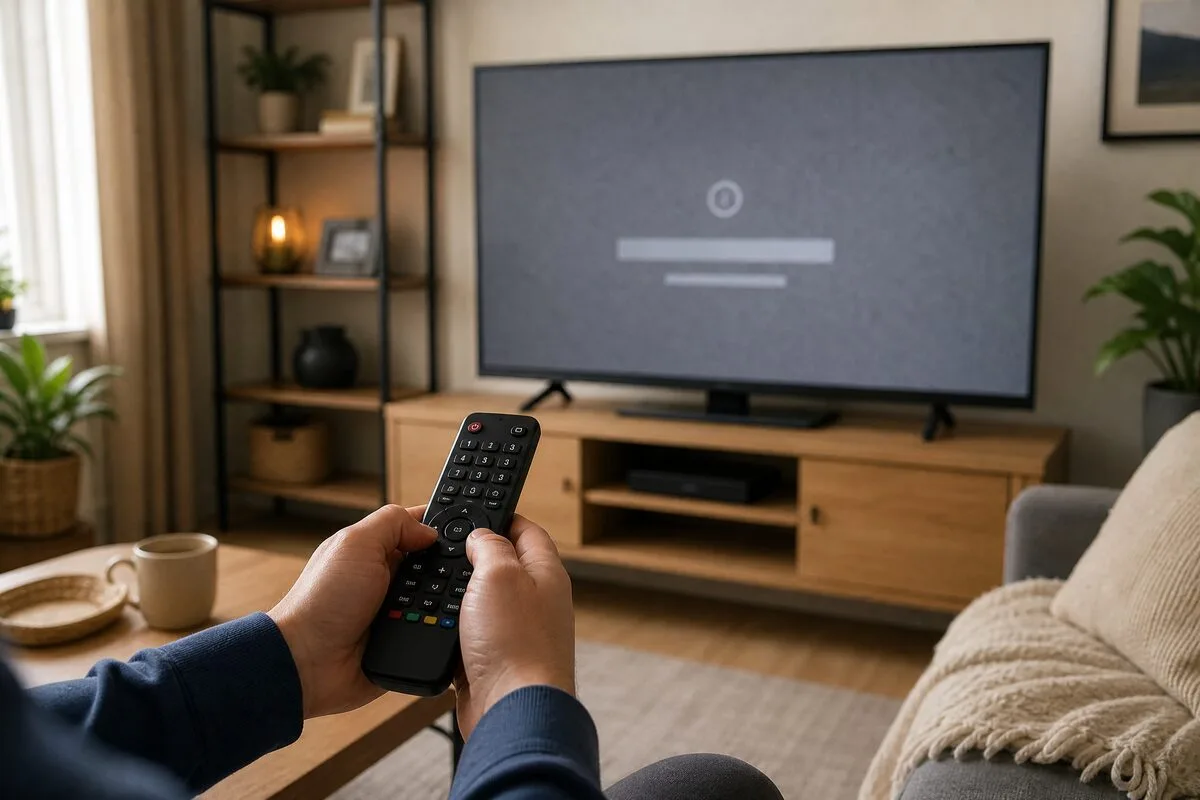
Apps that crash, freeze, or refuse to load on a smart TV are one of the most common frustrations — but most problems have straightforward fixes you can try at home. Below are practical, platform-agnostic steps you can work through, from quick app-level fixes to last-resort factory reset, organized so you can stop guessing and start getting your apps back.
How to approach the problem (quick triage)
Before you begin, run a quick triage so you don’t do unnecessary steps:
1. Note the symptom: crash/freeze during playback, failure to launch, login issues, or playback buffering.
2. Try another app (e.g., YouTube or a built-in tuner): if multiple apps fail, lean toward network or system-level problems; if only one app fails, focus on app-level fixes.
3. Check whether the problem is device-specific (does the app work on your phone/tablet?) to rule out an account or server outage.
Use the ordered troubleshooting below — start at the top and only move to more disruptive steps if earlier ones fail.
Step-by-step fixes for app crashes and freezes
1) Update the app first
Why: App developers push bug fixes and compatibility updates regularly.
What to do:
- Open your TV’s app store (Google Play Store on Android TV/Google TV, LG Content Store on webOS, Samsung TV Apps on Tizen, Roku Channel Store on Roku).
- Look for the app and choose Update if available.
- If your TV supports automatic app updates, verify that setting is enabled so future updates install automatically.
Tip: If an update just arrived and the app started failing, check the store page for recent version notes or developer contact info — sometimes developers issue follow-up fixes quickly.
2) Clear the app cache and data
Why: Corrupt cached data can cause crashes or freezes.
What to do:
- Android TV / Google TV: Settings → Apps → [App name] → Storage → Clear cache (and Clear data if you want to reset sign-in and settings).
- webOS (LG): Settings → All Settings → General → Manage Storage/Apps → [App] → Clear data or Clear cache (navigations vary by OS build).
- Tizen (Samsung): Apps → System Apps/Settings → [App] → Clear cache/data. Some Samsung models require uninstalling and reinstalling to clear full app data.
- Roku: You can “restart” the channel by removing it and re-adding; there’s no explicit app cache clear in the UI.
Warning: Clearing app data removes saved logins and preferences; back up any needed credentials first.
3) Reinstall the app
Why: Reinstalling replaces potentially corrupted app files with a fresh copy.
How to:
1. Uninstall or remove the app from your TV.
2. Power-cycle the TV (turn off, wait 10–30 seconds, turn on).
3. Reinstall the app from the store and sign back in.
When to do it: If an update and cache-clearing didn’t help, reinstalling often fixes persistent crashes.
4) Check the internet connection
Why: Many app failures look like crashes but are caused by intermittent or slow network access.
Quick checks:
- Open a different streaming app. If it also buffers, it’s likely network-related.
- Use a built-in network test (Settings → Network → Test connection) if your TV provides one.
- Restart your router and modem. Wait about 60 seconds between power off and on.
- If possible, switch to a wired Ethernet connection — it’s more reliable than Wi‑Fi for streaming.
- Try a different DNS (Cloudflare 1.1.1.1 or Google 8.8.8.8) in your TV or router settings if you suspect DNS resolution issues.
Advanced: Check network throughput using a phone or laptop on the same network; streaming apps typically need 5–25 Mbps depending on resolution and HDR.
5) TV system software update
Why: App frameworks depend on system APIs; older TV firmware can cause compatibility issues.
How to update:
- Settings → Support/General → Software Update (names vary by platform).
- If an update is available, install it and reboot the TV.
Notes:
- Some smart TVs receive major platform updates less frequently; if you see repeated compatibility problems on many apps, check the manufacturer support site for known issues or scheduled firmware fixes.
- When a major OS update is installed, you may need to reconfigure some apps or settings.
6) Check TV storage and free up space
Why: Insufficient internal storage can prevent apps from updating or running properly.
How to check and free space:
- Settings → Storage (or System → Storage) to see used vs available space.
- Remove unused apps, channels, or recorded programs.
- Move media to external USB storage if your TV supports it (check manufacturer guidance; not all TVs allow moving app data to USB).
Warning: Some apps store temporary files and logs; regular maintenance every few months helps on lower-storage devices.
7) Verify date and time settings
Why: Incorrect date/time can break secure connections and cause login failures or certificate errors that look like app crashes.
What to check:
- Settings → General → Date & Time.
- Enable automatic network-provided time where possible, or set the correct timezone and date manually.
- After adjusting, restart the app.
8) Check for a server outage or account problem
Why: If the app’s backend services or your account are having issues, reinstalling won’t help.
How to check:
- Visit the service’s status page from a phone or computer (many streaming services maintain status pages and social media feeds).
- Check the provider’s official Twitter/X or support page for outage reports.
- Try logging into the service on another device; if login fails across devices, the issue is likely server-side.
If it’s an outage: Wait for the provider to restore service. Report the behavior to the app developer if they aren’t acknowledging an outage; sometimes they need user reports to escalate.
9) Factory reset (last resort)
Why: If system-level corruption or persistent compatibility issues remain, a factory reset returns the TV to initial settings.
Before you reset:
- Back up account info, pairing codes, and Wi‑Fi passwords.
- Note any app login credentials and settings.
How to perform:
- Settings → System → Reset → Factory data reset (names vary).
- Confirm and follow on-screen instructions. The TV will restart and require setup again.
When to reset:
- After trying all other steps and when multiple apps or core system functions are impacted.
- If your TV behaves erratically (freezes at home screen, random reboots) and firmware updates didn’t fix it.
Caveats:
- Factory reset removes all installed apps and local settings.
- It rarely fixes hardware faults (e.g., failing memory chips or overheating); if problems persist after reset, contact manufacturer support.
Comparison: Common fixes at a glance
| Fix | Typical time to perform | Risk / Side effects | When to use |
|---|---|---|---|
| Update app | 1–5 minutes | Low — preserves settings | First step for single-app failure |
| Clear cache/data | 2–10 minutes | Clears local settings and logins (if data cleared) | When app crashes or behaves oddly |
| Reinstall app | 5–10 minutes | Requires sign-in afterwards | When cache clears don’t help |
| Check network | 5–20 minutes | Low — may require router restart | When multiple apps buffer or fail |
| System firmware update | 5–30 minutes | Some settings may change after major updates | When app compatibility is suspected |
| Free up storage | 5–20 minutes | Remove unused apps/media | When TV reports low storage or updates fail |
| Fix date/time | 1–3 minutes | Low | For login or certificate errors |
| Check server status | 1–10 minutes | None | When app fails across devices |
| Factory reset | 10–30+ minutes | Removes all apps/settings | Last resort for persistent/system-wide issues |
When to contact support or replace hardware
- Contact the app developer/support: if the app crashes only on your TV after you’ve tried reinstalling and other steps, file a bug report including TV model, OS build, app version, and a description of the crash.
- Contact TV manufacturer support: if multiple apps or system features continue to fail after a factory reset and firmware updates — this could indicate a hardware fault.
- Consider replacement: very old TV platforms may stop receiving updates and app support over time; if mainstream apps are regularly failing due to platform obsolescence, a newer TV or external streaming device (Android TV/Google TV stick, Roku, or Apple TV) may be the most practical long-term solution.
Preventive habits to reduce future app problems
- Keep both apps and TV firmware up to date.
- Enable automatic app updates and automatic time synchronization.
- Maintain some free storage (avoid filling internal storage with recordings or large app libraries).
- Reboot router and TV periodically (monthly) to clear temporary network issues.
- Use wired Ethernet when possible for the most stable streaming experience.
FAQ
Why does an app work on my phone but not my TV?
Different app builds and the TV’s OS environment can cause divergence. Phone apps may use different APIs or have newer updates. Try updating/reinstalling the TV app, and check both devices against the service status page.
Will clearing app data delete my account?
Clearing app data removes local settings and stored login sessions; your account on the service remains intact. You will need to sign in again after clearing data.
How do I know if it’s a server outage versus my TV?
Try the service on another device (phone, web browser). If the service is down elsewhere, it’s likely a server outage. Check the service’s official status page or support channels for confirmations.
Is a factory reset safe to try?
Factory reset is safe but destructive to settings and locally installed apps. Use it only after other troubleshooting steps and after backing up any needed information (Wi‑Fi passwords, account credentials).
This article was written and reviewed by the SmartTechTVs editorial team. Read our About