- Quick no-signal diagnosis (overview)
- Cable test
- Port swap and isolation
- HDMI handshake explained and resets
- HDCP (copy protection) issues
- Device output settings (safe-mode troubleshooting)
- eARC and ARC conflicts
- Physical port damage and cleaning
- Firmware, updates and factory reset
- When to call support or a technician
- Comparison: Common HDMI failure causes and quick actions
- Practical checklist before service call
- FAQ
HDMI Port Not Working on TV: Troubleshooting Guide
A dead or flaky HDMI port is one of the most frustrating TV problems — picture disappears, audio cuts out, or the TV never recognizes your device. This guide walks through practical, step-by-step diagnostics and fixes for common HDMI issues so you can find the root cause and get back to watching.
Quick no-signal diagnosis (overview)
Start with a simple flow: verify cable and power, swap ports and devices, then move into handshake/HDCP, software, and hardware checks. Work in this order so you fix the most common problems quickly before trying anything invasive.
1. Basic checks (fast path)
1. Confirm the TV is on the correct input/source.
2. Power-cycle both TV and source device (turn off, unplug 30 seconds, plug in, power on).
3. Try a different HDMI cable known to work.
4. Try the same HDMI cable and source on another TV or monitor to isolate TV vs. source.
If you still see no signal, proceed to the deeper checks below.
Cable test
HDMI cables fail more often than ports. Test method:
- Inspect visually: look for frayed ends, loose connectors, or crushed cable jackets.
- Swap cables: try a different cable that’s known-good. If you have a certified high-speed/ultra high-speed cable, use that.
- Cross-test: connect the suspect cable and source to a different TV or monitor. If the second display works, the cable is fine.
- Avoid long cheap cables for high bandwidth features (4K/120Hz, VRR, HDR). If you need to span long distances, use an active cable or fiber HDMI rated for the needed features.
Tip: When troubleshooting, use a short, known-good cable — it eliminates a lot of variables.
Port swap and isolation
Most TVs have multiple HDMI ports. Use them to isolate faults:
- Plug the same device and cable into a different HDMI port on the TV. If it works on another port, the first port may be faulty.
- Try the same source on another TV. If it fails across TVs, the source device is likely the problem.
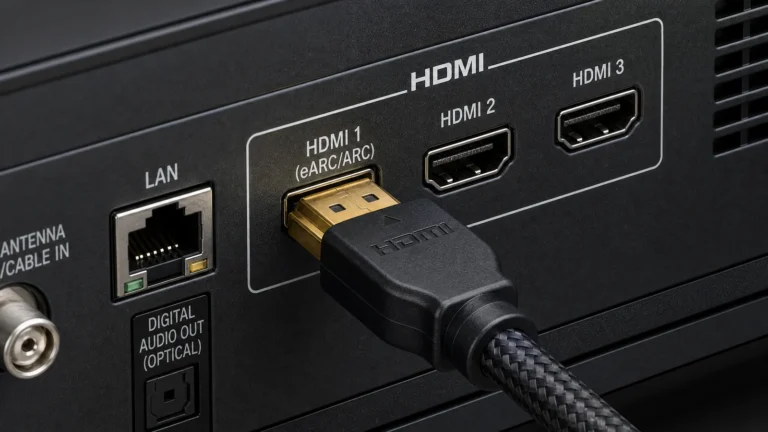
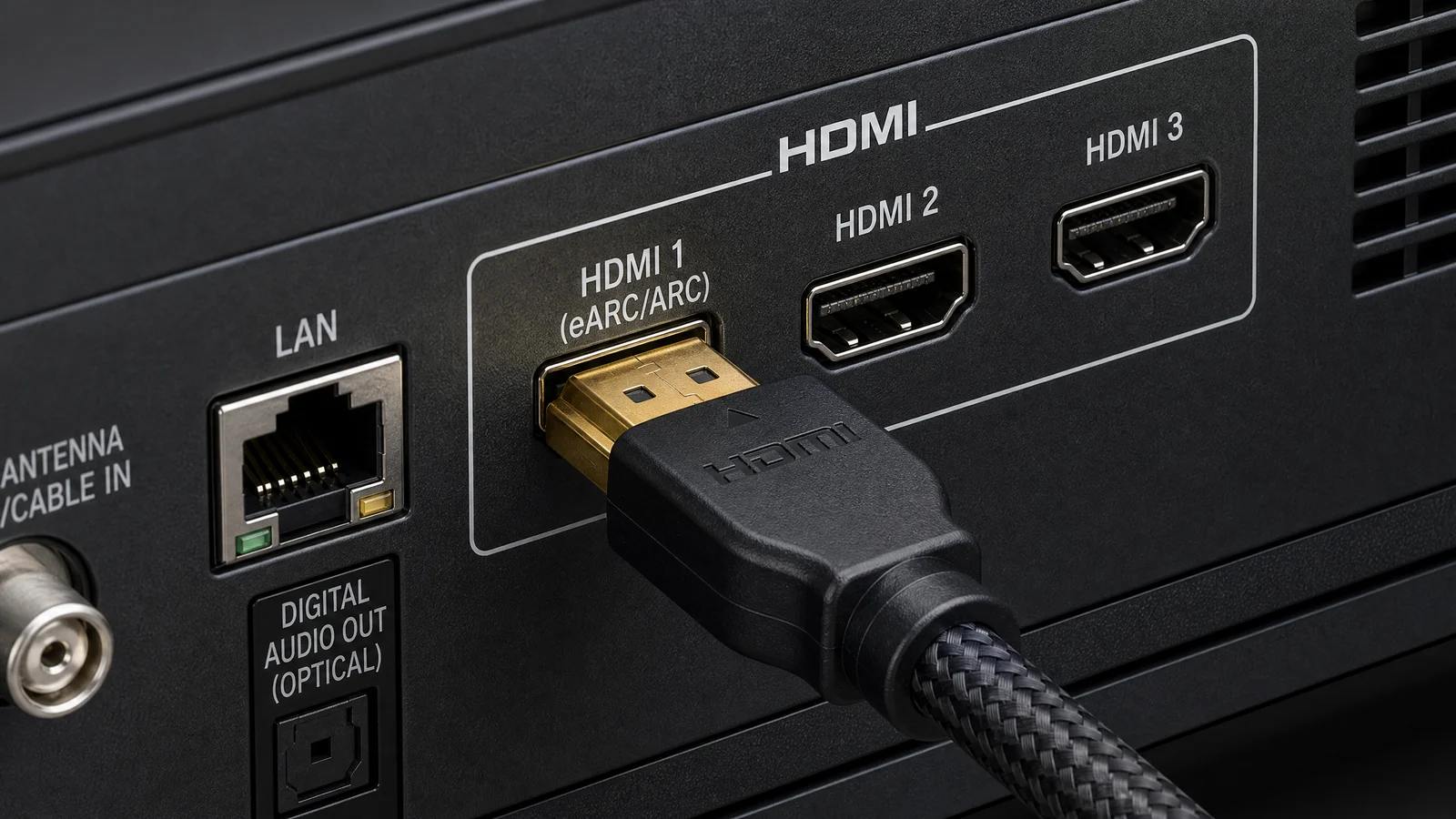
- If the TV has dedicated ports (e.g., labeled eARC/ARC or HDMI 2/X), avoid the eARC/ARC port while testing — it has extra audio features that can complicate diagnostics.
If only one port fails and others work, you likely have a port hardware issue (see “Port damage” below).
HDMI handshake explained and resets
“Handshake” describes how source and display negotiate capabilities (resolution, HDR, audio formats, HDCP). Handshake problems often cause black screens or intermittent signal.
Symptoms of handshake failure:
- No picture but audio present
- Picture appears briefly, then drops
- Intermittent flicker or color/format mismatch
Resetting the handshake:
1. Power down both devices and unplug power for 30–60 seconds.
2. Unplug all HDMI cables on both devices.
3. Plug in TV and source, power on TV first, then source.
4. Reconnect HDMI cable to the TV input, then the source output.
5. If available, disable HDMI-CEC/Anynet+/Bravia Sync temporarily — CEC can interfere during handshake.
If problems persist, try forcing the source to a lower, standard resolution (1080p or 720p) and turn off advanced features like HDR, 10-bit color, or high refresh rates while diagnosing.
HDCP (copy protection) issues
HDCP (High-bandwidth Digital Content Protection) can create a blank screen or an “HDCP error” message when any device in the chain doesn’t support the required version.
How to test for HDCP problems:
- Play non-DRM content (e.g., YouTube) and then a protected title (e.g., Netflix or a UHD Blu-ray). If non-DRM content works but DRM-protected content doesn’t, suspect HDCP.
- Remove any HDMI splitters, switches, or capture devices between the source and TV; many cheap or older splitters break HDCP.
- Use a direct connection from source to TV.
Fixes:
- Update firmware on TV and source (many HDCP fixes are firmware-delivered).
- Replace non-compliant splitters/switches with HDCP-compliant equipment.
- If using an AV receiver, connect the source directly to the TV to check whether the receiver is causing the issue.
Note: Modern streaming devices and TVs move toward HDCP 2.3+ for 4K UHD content; older gear may not be compatible with the latest DRM requirements.
Device output settings (safe-mode troubleshooting)
Many handshake and format issues come from source output settings. Change them to a safe baseline:
- Set resolution to 1080p (or 720p if 1080p also fails).
- Set color format to RGB or limited YCbCr 4:2:0 depending on the device’s defaults.
- Disable HDR, Dolby Vision, and advanced color/bit-depth options temporarily.
- Lower refresh rate (e.g., 60Hz) if the TV or cable may not support higher rates.
Procedure:
1. Connect source to a working monitor or TV that you can control.
2. Open the source’s display settings and choose standard outputs (1080p/60Hz, SDR).
3. Reconnect to your main TV. If it works, re-enable features one at a time to identify the feature causing the conflict.
Many game consoles and streaming boxes have a “video output reset” or “safe mode” option that forces basic output — use it for troubleshooting.
eARC and ARC conflicts
ARC/eARC ports handle audio return and advanced audio formats and can complicate HDMI signaling when a soundbar or AVR is in the chain.
Common eARC issues:
- TV loses picture on HDMI ports when ARC/eARC device is connected or powered on.
- Audio works but picture doesn’t, or vice versa.
- TV only shows audio over TV speakers, not the soundbar.
Troubleshooting steps:
1. Temporarily disconnect the eARC/ARC device and connect the source directly to the TV.
2. If direct connection works, reconnect the soundbar/AVR on a different port or use optical as a temporary fallback.
3. Update firmware on TV and audio device — many eARC fixes arrive via updates.
4. Toggle HDMI-CEC and eARC settings on both devices; some combinations require CEC on or off to complete audio handshake.
5. Verify both devices are eARC-compliant. If the AVR is ARC-only and the TV expects eARC features (or vice versa), fallback mismatches can break the chain.
If your setup requires advanced audio formats (Dolby Atmos via passthrough), ensure the entire chain supports the format.
Physical port damage and cleaning
If a port has been physically stressed, you may see intermittent contact or no connection. Signs include loose connector feel, bent pins, or foreign debris.
Safe inspection and cleaning:
- Power off and unplug the TV before inspecting.
- Use a flashlight to look into the HDMI port for bent pins or debris.
- Gently blow with short puffs of canned air (keep the can upright) to remove dust.
- Do not poke metal tools inside the port. Do not attempt to bend pins back yourself unless you are trained — that can make the problem worse.
- If pins are visibly bent or the connector feels loose, stop and contact a service technician or the manufacturer. If the TV is under warranty, the manufacturer should handle repair or replacement.
Avoid DIY solder repairs unless you have appropriate experience; modern TV boards are compact and can be damaged by novice work.
Firmware, updates and factory reset
Software bugs are a surprisingly common root cause of HDMI failures, especially after a major OS update or when new AV devices introduce new handshake requirements.
Update steps:
1. Check your TV’s settings > support or system update. If connected to the internet, many TVs will show available updates automatically.
2. Update source devices (streaming sticks, consoles, Blu-ray players, AVR) as well.
3. If the TV won’t connect to the network, most manufacturers offer a USB update file you can download and apply — follow the manufacturer’s instructions.
If updates don’t help:
- Try a factory reset as a last resort (back up settings and apps where possible). A reset can clear corrupted configs that break HDMI negotiation.
- Keep release notes handy: some firmware releases can introduce temporary compatibility issues; if a new update introduced problems, check manufacturer forums for rollback options or hotfixes.
When to call support or a technician
- Only one HDMI port is physically damaged, and cleaning doesn’t help.
- Multiple devices and cables fail on the TV but work elsewhere — likely TV board fault.
- You’re uncomfortable opening the TV or attempting repairs.
- The TV is under warranty — contact the manufacturer for authorized repair.
If the TV is out of warranty and the repair cost approaches the price of a replacement, evaluate replacement versus repair.
Comparison: Common HDMI failure causes and quick actions
| Symptom | Likely cause | Quick test | First-line fix |
|---|---|---|---|
| No signal on one port, other ports work | Physical port damage or solder joint | Swap device to another port | Stop using damaged port; contact service/warranty |
| Intermittent picture/audio | Loose cable or handshake issue | Try different short cable and power-cycle devices | Replace cable; reset handshake (power cycle, disable CEC) |
| Works for YouTube but not Netflix | HDCP/DRM issue | Play non-DRM vs DRM content | Update firmware; direct connect; replace non-compliant splitter |
| No picture when soundbar connected | eARC/ARC handshake conflict | Disconnect soundbar and test direct | Update firmware; try different HDMI port; use optical audio |
| No change after settings tweak | Firmware bug or corrupted settings | Check for updates; factory reset | Update TV/source firmware; factory reset if needed |
Practical checklist before service call
- Try a known-good short HDMI cable.
- Test the source on another display.
- Test another source on the TV.
- Power cycle all devices (unplug for 30–60 seconds).
- Update firmware on TV and source devices.
- Disable eARC/CEC and advanced video features while testing.
- Check for physical port damage; do not insert tools into the port.
Following this checklist usually isolates the problem quickly and resolves most HDMI failures without professional repair.
FAQ
Why does my TV display “No Signal” even though the HDMI cable is connected?
“No Signal” usually means no valid HDMI handshake or the source isn’t outputting a supported format. Power-cycle both devices, confirm the TV input, and try a different cable or port to isolate the issue.
How can I tell if an HDMI port is physically damaged?
Look for a loose connector, bent pins, or debris when the TV is powered off. If the plug feels loose or you see bent pins, stop using the port and contact a technician or the manufacturer; do not insert metal objects.
Can a firmware update fix HDMI handshake or eARC problems?
Yes. Manufacturers routinely release firmware updates that address HDCP, HDMI handshake, and eARC compatibility issues. Always check for updates on both the TV and connected devices before pursuing hardware repairs.
Will an HDMI splitter or switch cause HDCP or signal problems?
Cheap or non-certified splitters/switches often break HDCP and cause handshake problems. Use certified HDMI switches/splitters that explicitly support the HDCP version and bandwidth your setup requires, or connect the source directly to the TV for testing.
This article was written and reviewed by the SmartTechTVs editorial team. Read our About