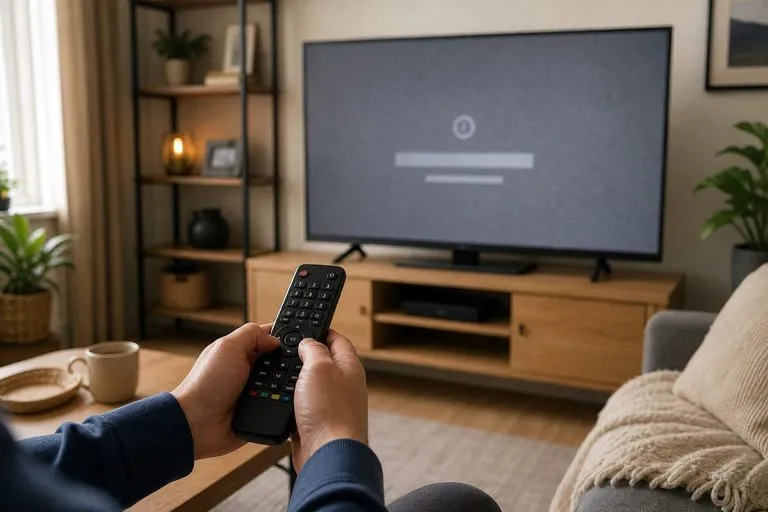
Audio that arrives before or after the picture is an audio-sync problem, often called lip-sync delay. It can come from the TV, a soundbar, an AV receiver, a streaming app, or the connection between them. The quickest fix is to identify whether the mismatch affects every source or only one device.
Find where the delay begins
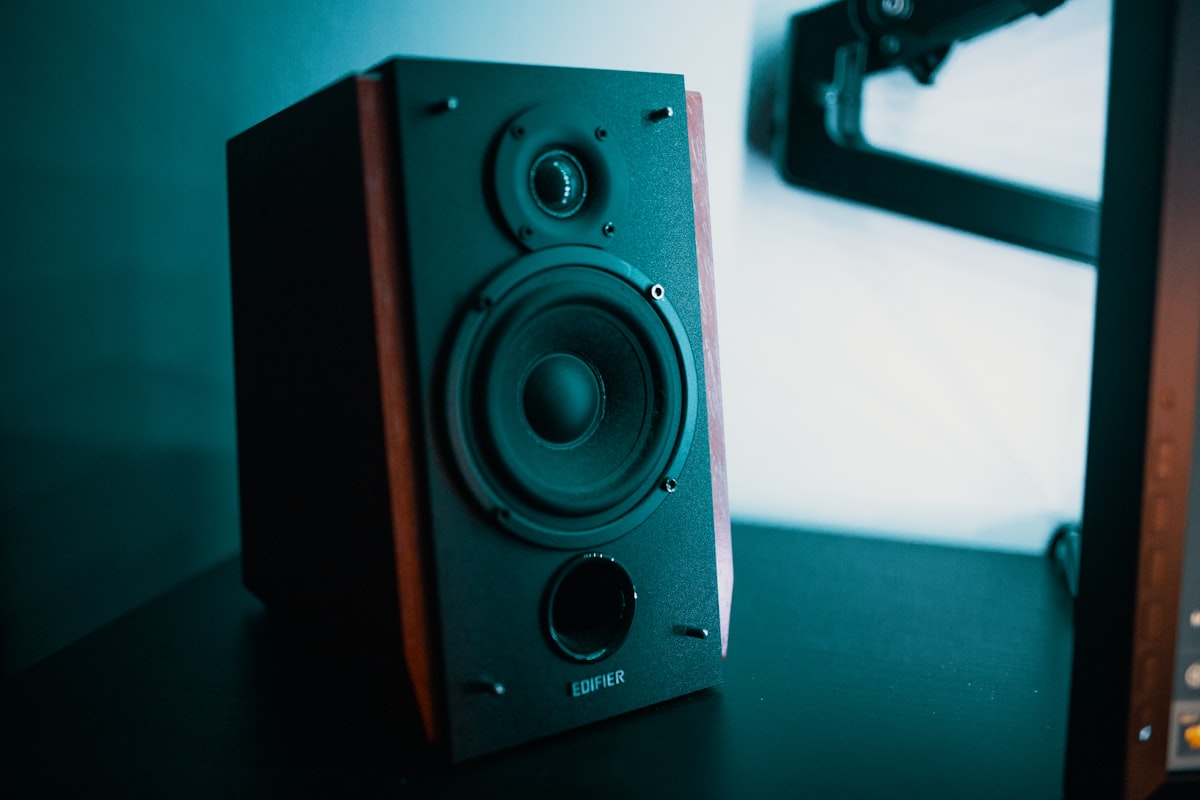
Play the same type of content through the TV speakers and then through the soundbar. If the TV speakers are synchronized but the soundbar is not, the delay is probably in the external audio path. If both are delayed, check the source app, TV processing, or broadcast signal. Test a second HDMI device before changing advanced settings.
Check the connection and audio format
For a soundbar, HDMI ARC or eARC is usually easier to manage than a chain of optical and Bluetooth connections. Confirm that the cable is connected to the TV’s ARC/eARC port and the soundbar’s matching port. Bluetooth can introduce latency, and passthrough settings may change the amount of processing applied to video and audio.
Use the TV’s sync control
Many TVs include an Audio Delay, AV Sync, or Lip Sync control under sound settings. Change it in small increments while watching speech, and remember that some controls add delay rather than remove it. If audio is already late, reduce the delay or use a negative value only when the TV supports it. Menu names vary by model and firmware.
Check the soundbar or receiver
Soundbars and receivers may have their own audio-delay control. Change only one device at a time so you know which setting helped. Disable unnecessary audio processing, test PCM or another compatible output mode, and then restore surround formats if the sync remains stable. A firmware update may help when the problem began after a software change.
When the problem is app-specific
If one streaming app is out of sync while other sources work, update or reinstall that app and test another title. Buffering, an unstable stream, or a title-specific encoding issue can look like a hardware delay. Report persistent problems to the app provider rather than repeatedly changing the TV’s global sync setting.
Final checklist
- Compare TV speakers with the soundbar.
- Test another source and another HDMI input.
- Confirm ARC/eARC and cable connections.
- Adjust one delay control at a time.
- Test PCM and update firmware if necessary.
- Reset only the affected device after recording your settings.
Related Reading: How to Fix Common HDMI Connection Issues