Cloud gaming streams a game from a remote data center to your TV instead of rendering the entire game locally. The TV or streaming device displays the video and sends your controller input back over the internet. This can make modern games available on modest hardware, but the experience depends heavily on network stability, latency, service support, and the controller connection.
What you need
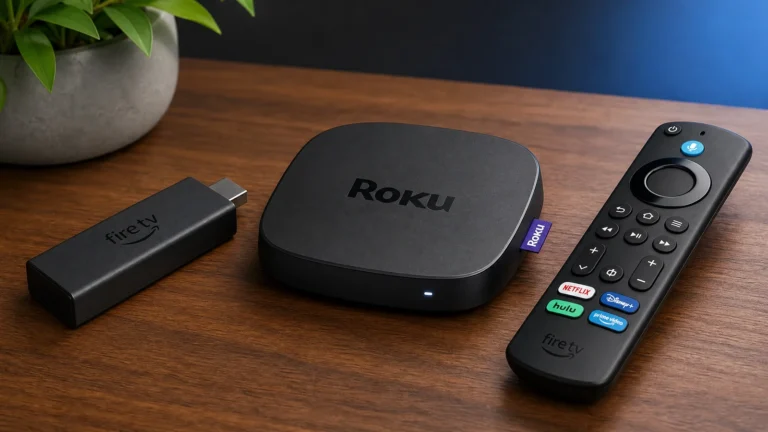
You need a supported cloud-gaming service, a compatible smart-TV app or streaming device, a stable internet connection, and a supported controller. Availability varies by country, TV platform, subscription, and service. Check the provider’s current compatibility list before buying hardware for one app.
Why latency matters
Cloud gaming involves input travel from the controller to the service and video travel back to the screen. A fast connection can still feel poor if latency fluctuates or the Wi-Fi link loses packets. Competitive games are more sensitive than turn-based or single-player titles. Ethernet or a strong 5 GHz/6 GHz Wi-Fi connection near the TV can help, but the route to the service also matters.
Improve the living-room setup
- Connect the TV or streamer to the strongest available network, preferably Ethernet where practical.
- Pause large downloads and avoid heavy traffic on the same connection during play.
- Enable the TV’s Game Mode to reduce unnecessary picture processing.
- Pair the controller directly with the device that runs the cloud app when supported.
- Keep the app, TV firmware, and controller firmware updated.
Picture quality and data use
Cloud services adapt video quality to bandwidth and congestion. You may see compression, soft detail, or resolution changes even when the game itself is rendered at a higher quality in the data center. A wired connection helps consistency but cannot guarantee a fixed stream quality. Check the provider’s requirements and data-policy details if your internet plan has a cap.
Cloud gaming versus a console
Cloud gaming reduces hardware cost and setup time, while a console or gaming PC usually offers more predictable latency, local rendering, and offline options. Cloud gaming is a good way to sample supported titles or play casually; a local system is safer for competitive play or games that demand fast response.
How to troubleshoot lag
First compare the same game on another network or device. If the problem follows the service, check its status and support page. If only the TV is affected, update the app, restart the TV, and test Ethernet or a different streamer. Do not confuse buffering with controller input delay: they require different fixes.
Related Reading: Streaming Video Keeps Dropping In Quality