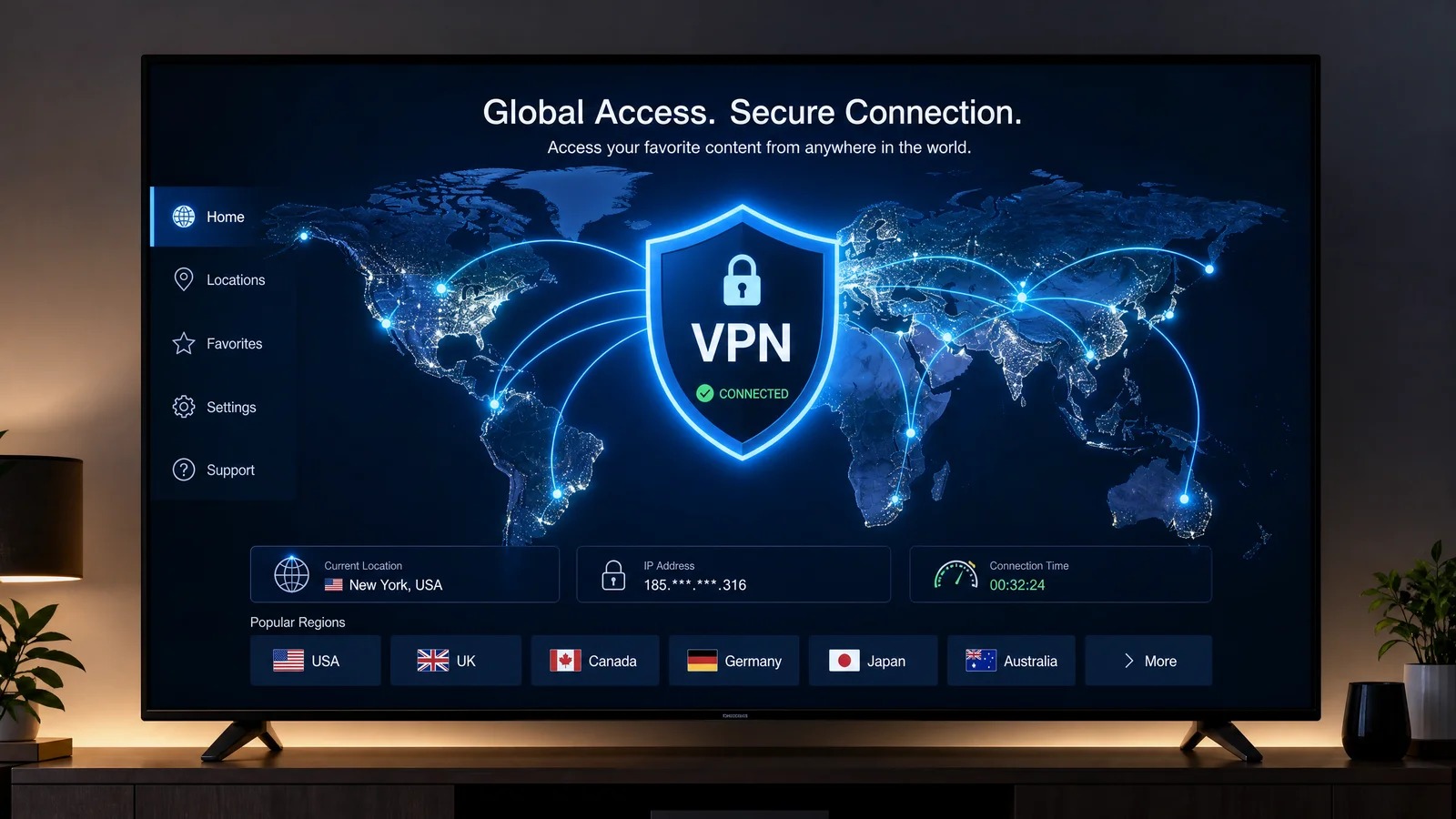
A VPN can route a Smart TV’s internet traffic through another server, which may help with privacy or access to services that are legitimately available to your account in another location. It can also reduce speed, interfere with app licensing, and violate a service’s terms. Set it up only for lawful use and check the provider’s rules first.
Choose a method that fits your TV
Many Smart TVs do not support every VPN app directly. Common alternatives include installing the provider’s app on a compatible streaming device, configuring a VPN on a supported router, or sharing a protected connection from another device. Each method has different performance, setup, and troubleshooting implications.
Using a compatible TV or streaming app
If your TV platform offers the VPN provider’s official app, install it from the platform’s approved store, sign in, and choose a server. App availability depends on model, operating-system version, region, and provider. Avoid sideloading unknown packages onto a television that handles personal accounts.
Using a VPN-enabled router
A router-level setup can cover devices that cannot run a VPN app, but it affects the whole network or a selected router profile. Follow the VPN provider’s current router instructions and confirm that your router firmware supports the required protocol. Keep a backup of the original router configuration so you can restore normal routing.
Performance and streaming trade-offs
Encryption and the distance to the VPN server can increase latency and reduce throughput. That may cause buffering, lower video quality, or slower app stores. Try a nearby server, compare the connection with and without the VPN, and avoid assuming that a different location will improve every service. The app may also detect or restrict VPN traffic.
Safe troubleshooting
- Confirm that the VPN connection is active before opening the target app.
- Test ordinary browsing or another service to separate VPN problems from app outages.
- Update the VPN app, TV firmware, and streaming device.
- Use the provider’s kill-switch and DNS guidance only when supported by the device.
- Disconnect the VPN if it prevents account login, payments, casting, or local-device discovery.
Privacy limits
A VPN does not make an account anonymous, remove a service’s licensing restrictions, or protect every device automatically. The VPN provider can still process connection information under its own policy. Review the provider’s privacy terms and keep your TV software current.
Related Reading: Why Is My Smart TV So Slow? Causes and Fixes