How to Update Your Smart TV Software (Step-by-Step Guide)
SmartTechTVs.com
Updating your smart TV’s software keeps the TV secure, fixes bugs, and can add new features — but the process differs by brand and sometimes by model. This guide walks through why updates matter, how to prepare, step-by-step update paths for major platforms (Samsung, LG, Sony/Android TV, Roku, Fire TV), USB fallback options, and what to do if an update fails.
Why updates matter
Security
Smart TVs are networked devices that store credentials for streaming apps and connect to home networks. Manufacturers regularly patch vulnerabilities exposed by new exploits — skipping updates leaves you open to account compromise or network attacks.
Features
Manufacturers add new streaming partners, user interface refinements, remote control improvements, voice-assistant integrations, and HDR/format support via firmware. Staying current keeps the TV compatible with services and accessories.
Bug fixes and stability
Updates resolve playback glitches, HDMI/CEC issues, Wi‑Fi stability, remote pairing problems, and memory leaks. Applying updates reduces crashes and improves responsiveness.
Prepare before you update
Before starting any update, do the following to reduce the chance of failure:
- Note the TV model number and serial (menu → About or on the back of the set).
- Ensure a stable power source (connect to an outlet, avoid extension cords if unreliable).
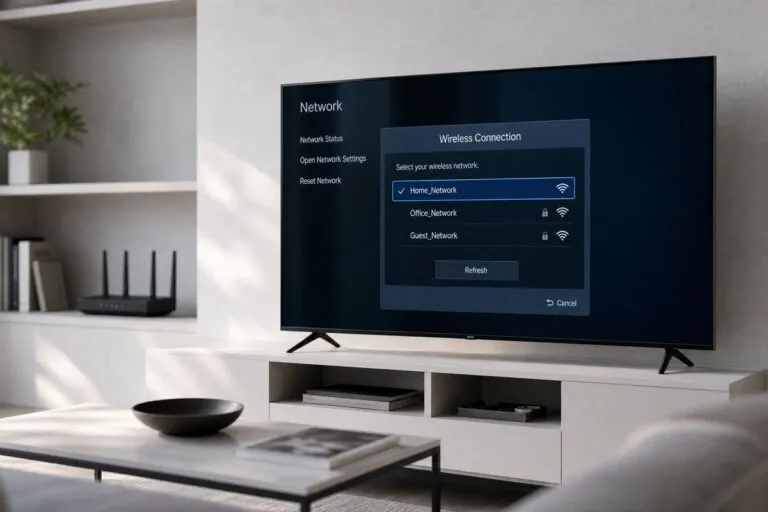
- Use a wired Ethernet connection when possible — it’s faster and more reliable than Wi‑Fi for large updates.
- Close running apps and free up internal storage if the OS reports low space.
- Read the release notes on the manufacturer’s support page (they often list known issues and required pre-update steps).
- If the TV uses manufacturer cloud profiles (Samsung, LG, Sony), make sure you are signed in so settings sync where supported.
- Don’t power off during the update unless instructed; this can brick the device.
Update paths by brand
Below are the typical, consumer-level update paths for each major platform in 2026. Menu locations can vary by model year and UI version — use the table and the step lists for the common flow.
| Brand / Platform | Primary update method | Where to check | USB/manual image available? | Notes |
|---|---|---|---|---|
| Samsung (Tizen) | Over-the-air (OTA) via network; SmartThings app for some management | Settings → Support → Software Update | Some models: yes via support site; not common for consumers | Staged roll-outs; use Ethernet for reliability |
| LG (webOS) | OTA via network; ThinQ app for notifications | Settings → All Settings → General → About This TV → Check for Updates | Many models: yes (firmware file on LG support) | LG provides user-downloadable files for many TVs |
| Sony (Google TV / Android TV) | OTA via network; Google Play services used for system updates | Settings → System → About → System update | Rare for consumers; service tools exist | Sony models use Android update pipeline; staged rollout typical |
| Roku | OTA via network (device-managed) | Settings → System → System update | No | Roku devices update automatically, user can force a check |
| Amazon Fire TV | OTA via network | Settings → Device & Software → About → Check for Updates | No | Fire OS updates pushed by Amazon; sideloading apps is separate |
Samsung (Tizen) — step-by-step
1. Connect TV to Ethernet or stable Wi‑Fi.
2. Menu: Settings → Support → Software Update.
3. Select “Update Now” or enable “Auto Update” if available.
4. Wait — the TV will download and install, then reboot.
5. If no update appears but support site lists one, check your model/serial and contact support; for some models Samsung posts update packages for service centers only. Samsung SmartThings app can sometimes notify or push updates to the TV.
USB fallback: Some Samsung models have firmware files on Samsung’s support site. If available, download the exact file for your model, extract to a FAT32-formatted USB stick following Samsung instructions, insert the stick into the TV and follow the on-screen or service-manual process. Do not use firmware for another model.
LG (webOS) — step-by-step
1. Wired connection recommended.
2. Settings → All Settings → General → About This TV → Check for Updates.
3. If an update is available, select Download and Install.
4. The TV will reboot to apply the update.
USB fallback: LG provides firmware files for many models. Download the ZIP from LG’s support page, extract and copy to a FAT32 USB drive as instructed by LG. Insert and follow any on-screen prompts. LG’s instructions will specify folder structure and file names.
Sony / Android TV / Google TV — step-by-step
1. Connect to Ethernet for best reliability.
2. Settings → System → About → System update → Check for update.
3. If available, follow prompts; the system will download, verify and install then reboot.
Notes: System updates for Android TV / Google TV often roll out in stages and may be tied to the device’s build/channel. Sony sometimes coordinates updates with Google and with app updates via Google Play. Sony typically does not provide USB firmware images to consumers; service-level recovery tools exist for authorized centers.
Roku — step-by-step
1. Settings → System → System update → Check now.
2. Roku devices automatically install updates, but you can force a check this way.
3. Keep the device powered and connected; allow it to reboot to complete installation.
Notes: Roku does not provide consumer USB firmware files. If a device becomes unresponsive after an update, use the Restart option (Settings → System → Power → System restart) and contact Roku support if necessary.
Amazon Fire TV — step-by-step
1. Settings → Device & Software → About → Check for Updates.
2. If an update is found, select Install and let the device reboot.
3. Keep the unit powered; avoid unplugging mid-update.
Notes: Fire OS system updates are pushed by Amazon. There is no supported USB firmware update for consumer Fire TV devices. For app or sideload maintenance, developers can use ADB, but that does not replace system updates.
Auto-update settings
Enabling automatic updates is the simplest way to keep a TV current. General steps:
- Navigate to Settings → System or Support → Software Update.
- Look for “Auto update”, “Automatic download”, or “Install automatically” and toggle it on.
- If the TV offers scheduled install times (late-night window), set one to avoid interruptions during viewing.
- For households with bandwidth limits, choose “Download only on Wi‑Fi” or enable Ethernet-only downloads where available.
Note: Auto-update may still use staged rollouts; enabling auto-update doesn’t guarantee immediate access to the very latest build.
Manual check — practical tips
- Use a wired Ethernet connection for a faster, more reliable download.
- If the TV reports “no update” but the support site shows a file, confirm your exact model code — model naming varies by region.
- Leave the TV powered during download/install; do not unplug.
- If the update fails mid-download, restart the TV and try again. If repeated failures occur, see the troubleshooting section.
USB update fallback (how and when to use it)
When network updates aren’t possible (no network, repeated failures, or a recovery scenario), some manufacturers publish firmware files you can install from USB. General safe procedure:
1. Confirm provider support: check the TV’s official support page for your model and region for a firmware download and instructions.
2. Download only from the manufacturer’s site.
3. Verify model number and region match exactly.
4. Format a USB stick to FAT32 (or as specified) and copy files per the vendor instructions. Avoid NTFS unless explicitly required.
5. Insert the USB into the TV while powered off or in the state the vendor specifies, then power on and follow prompts. Some vendors require a specific button combo.
6. Wait — do not power off mid-process.
Cautions:
- Installing incorrect firmware can permanently damage the TV.
- Some vendors provide USB images only to service centers.
- If unsure, contact manufacturer support or an authorized technician.
What to do if an update fails
If an update fails or the TV behaves badly after an update, follow these steps in order:
1. Basic restart and retry
- Power off, unplug for 30 seconds, plug back in and try the update again (or restart via Settings).
- If using Wi‑Fi, connect via Ethernet and repeat the update.
- Delete unused apps, clear cache if the UI allows, then retry.
2. Switch to Ethernet
3. Free up storage and close apps
4. Factory reset (as a last consumer option)
- Settings → System → Reset → Factory data reset. This removes accounts and settings; sign back in afterward.
5. Recovery and service
- If the TV won’t boot or is stuck in a boot loop, look for manufacturer recovery guidance. For bricked devices, contact the manufacturer or authorized service — do not attempt undocumented service-mode procedures from random web forums.
6. Document and report
- Note error messages, the current build number (if visible), and the serial number. This information speeds up manufacturer support.
For Roku and Fire TV devices, a persistent failure often requires contacting the platform’s support because consumer-accessible USB recovery options are not provided.
Best practices summary
- Keep automatic updates enabled unless you have a reason to delay.
- Use Ethernet for large or critical updates.
- Verify model numbers before attempting USB/manual image installs.
- Back up or note account credentials so you can re‑sign into streaming services after resets.
- If unsure, contact manufacturer support — incorrect firmware installs are a common cause of irreparable damage.
FAQ
How often should I check for smart TV updates?
Check monthly if auto-updates are off; otherwise let automatic updates run and check support notices when you notice issues.
Can I update my smart TV with a random firmware from the internet?
No. Only use firmware from the official manufacturer support site for your exact model and region — third-party files risk bricking the TV and voiding warranty.
What happens if the TV loses power during an update?
A power loss during firmware installation can corrupt the OS and brick the TV. If this happens, try recovery steps, but prepare to contact the manufacturer or an authorized service center.
Are app updates the same as system updates?
No. App updates (Netflix, YouTube) are managed through app stores or the device’s app manager and are separate from system/firmware updates that change the TV’s core software.
This article was written and reviewed by the SmartTechTVs editorial team. Read our Editorial Policy and About page.
This article was written and reviewed by the SmartTechTVs editorial team. Read our Editorial Policy and About page.
Related Reading: How to Calibrate Your Smart TV for the Best Picture Quality