- Quick checklist: what to try first
- Causes of lag and how they behave
- Step-by-step: A prioritized speed-fix routine
- Factory reset: last-resort but effective sometimes
- When the TV hardware is the bottleneck
- Comparison: Causes vs Quick Fixes vs When to Replace Hardware
- Practical tools and diagnostics
- When to choose an external streaming device
- Preventive habits to keep your TV snappy
- FAQ
Why Is My Smart TV So Slow? (Speed Fixes and Performance Tips)
Smart TVs make entertainment effortless — until they don’t. If apps stutter, menus lag, or streaming buffers constantly, the issue is usually fixable with a few targeted steps rather than replacing the whole TV.
Below are the common causes of sluggish performance, practical troubleshooting steps you can try right away, and longer-term options if the TV’s hardware is the bottleneck.
Quick checklist: what to try first
- Power-cycle the TV and your router (unplug 30 seconds).
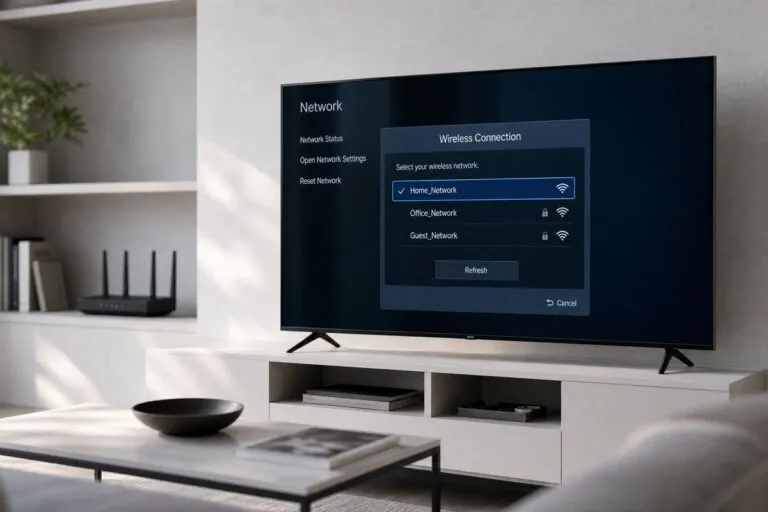
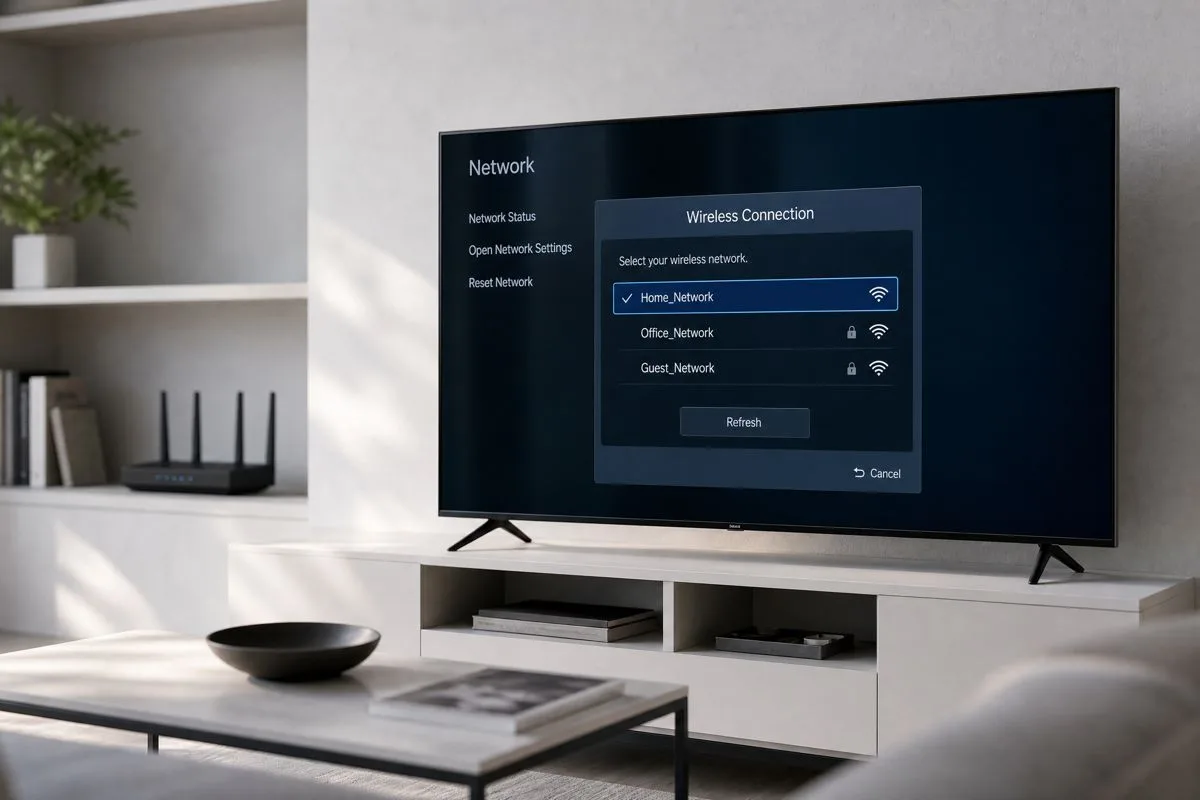
- Try a wired Ethernet connection if possible.
- Close or uninstall unused apps.
- Check for and install system firmware and app updates.
- Clear app caches or perform a soft reset.
Causes of lag and how they behave
Too many apps installed
Symptom: Home screen slow to load, app list laggy.
Why: Smart TV platforms keep metadata and thumbnails for installed apps and occasionally preload content, consuming storage and CPU cycles.
What to do:
1. Go to Settings > Apps (or equivalent on your platform).
2. Uninstall apps you rarely use.
3. Hide or disable built-in apps if the OS allows it.
4. Reboot the TV after removing apps.
Full cache and app data
Symptom: Specific app (YouTube, Netflix, Prime) plays poorly even though the home menu is OK.
Why: Apps store temporary files and thumbnails; over time this can bloat internal storage and slow the app engine.
How to clear caches:
- Android TV / Google TV: Settings > Apps > Select app > Clear cache (or Clear storage if you want a full reset).
- Tizen (Samsung) / webOS (LG): Look for App Manager or Storage > Clear cache/data; if no option, uninstall and reinstall the app.
- If the UI doesn’t expose cache clearing, uninstall the app and reinstall it.
Old firmware / OS
Symptom: System-wide sluggishness, apps crash, compatibility issues.
Why: Manufacturers release firmware updates to fix bugs and improve performance. Older firmware can accumulate problems or be incompatible with newer app versions.
Update steps:
1. Settings > About / Support > Software Update (exact path varies).
2. Check for and apply updates. Keep your TV plugged in while updating.
3. If OTA fails, check the manufacturer’s support site for manual update via USB and follow their instructions.
Background apps and processes
Symptom: Slow home screen response, periodic freezes.
Why: Some apps run background services (news widgets, streaming preloads, voice assistant listeners). Overloading these can starve the UI of CPU/RAM.
How to fix:
- Disable auto-launch or background refresh in app settings.
- Turn off unnecessary features like home screen recommendations, auto content recognition, or ambient modes.
- Force-stop apps from the App Manager and reboot.
Limited RAM and weak SoC (hardware limits)
Symptom: Even after housekeeping, the TV is slow, especially with multi-tasking or heavy apps.
Why: Many TVs use low-power system-on-a-chip (SoC) designs with limited RAM (often 1–3 GB). Complex modern apps (web-based streaming, smart home hubs) can exceed what the hardware handles.
Options:
- Use an external streaming device (Roku, Chromecast with Google TV, Amazon Fire TV, or other set-top boxes) which typically have more capable hardware and get frequent updates.
- If you prefer the TV’s built-in apps, reduce simultaneous tasks and keep the home screen minimal.
Slow or unstable internet
Symptom: Buffering, quality drops, app rebuffering, but UI may still respond.
Why: Streaming is bandwidth- and latency-sensitive. Wi‑Fi interference, slow ISP speeds, or router problems cause perceived “TV slowness.”
Network fixes:
1. Run a speed test on the TV or a nearby device. For 4K streaming, target ~25 Mbps stable.
2. Prefer wired Ethernet (stable and faster) over Wi‑Fi.
3. If Wi‑Fi is necessary, use a 5 GHz band, minimize distance, and remove obstacles. Reboot the router.
4. Ensure router firmware is up to date and use QoS to prioritize streaming if available.
5. Consider upgrading to Wi‑Fi 6/6E gear if you have many devices sharing the network.
Outdated apps
Symptom: An app works poorly or crashes, while others are fine.
Why: App developers update to optimize code and match OS changes. Old app versions can be buggy or incompatible.
How to update:
- Open the platform’s app store and check for updates.
- Turn on automatic app updates if you prefer, but be aware updates download in the background (see disabling unused background updates below).
Storage management
Symptom: TV is sluggish overall and installing new apps fails.
Why: Internal flash storage fills with apps, cache, and system files.
Storage management tips:
- Uninstall unused apps and games.
- Some Android TV devices allow formatting a USB drive as internal storage (Adoptable Storage) — only do this if you won’t move the drive between devices.
- Move large apps to connected USB storage if your TV supports it, but be aware that performance from USB will be slower than internal flash.
Disabling unused features
Symptom: Home screen and input lag; unexpected background activity.
Why: Features like voice assistant always-listening, live content previews, automatic app updates, and ambient modes consume resources.
What to disable:
- Voice assistant and microphone access (if you don’t use them).
- Home screen autoplay previews or recommended content.
- Auto-download or auto-update apps if they run during usage.
- Ambient/clock/photo modes that load content from the internet.
Step-by-step: A prioritized speed-fix routine
1. Soft reboot: Unplug the TV and router for 30 seconds, then reconnect.
2. Test streaming: Try a local file or a low-bitrate stream to see if the TV itself is the issue vs. network.
3. Check internet: Run speed test; switch to wired if possible.
4. Free space: Uninstall apps and clear caches.
5. Update firmware and apps.
6. Disable background features and auto-start apps.
7. If still sluggish, try a factory reset (see next).
8. If performance remains poor afterward, consider an external streamer or a hardware upgrade.
Factory reset: last-resort but effective sometimes
Why: Factory reset returns the TV to original software state, clearing corrupt settings, cached data, and app conflicts.
Before you reset:
- Note account credentials (Google, Samsung, LG, streaming services).
- List important settings (Wi‑Fi name/password, picture profiles).
- Back up any supported settings if the platform allows.
How:
- Settings > System > Reset > Factory Reset (exact path varies). Confirm and wait — do not power off during reset.
- Reinstall only the essential apps first to test speed before restoring everything.
When the TV hardware is the bottleneck
If you’ve exhausted software fixes and the TV still behaves slowly, it’s likely the TV’s SoC, RAM, or storage is underspecified for modern apps. In 2026, many affordable smart TVs still ship with modest hardware optimized for basic streaming.
What you can do:
- Use a dedicated streaming device with a stronger SoC and current OS.
- Keep the TV’s built-in apps for occasional use only.
- When buying a new TV, prioritize more RAM and a more recent OS version, or choose models known for faster performance (e.g., mainstream flagship lines from major manufacturers).
Comparison: Causes vs Quick Fixes vs When to Replace Hardware
| Cause | Quick fixes | Replace hardware? |
|---|---|---|
| Too many apps | Uninstall unused apps, reboot | No (usually) |
| Full cache / app data | Clear cache or reinstall app | No |
| Old firmware / OS | Update system firmware | No |
| Background apps/processes | Disable auto-start/background refresh | No |
| Limited RAM / weak SoC | Use external streamer; minimize multitasking | Yes (practical) |
| Slow internet | Use Ethernet, upgrade Wi‑Fi/router, check ISP | No |
| Outdated apps | Update or reinstall apps | No |
| Storage full | Uninstall/move apps, format/expand storage if supported | No |
| Persistent instability | Factory reset | Maybe (if fails) |
Practical tools and diagnostics
- TV’s built-in diagnostics: Many TVs have test menus or health checks under Support.
- Network tools: Use speed test apps on the TV or a laptop on the same network to isolate the issue.
- Router logs: Check for packet loss or frequent re-associations in the router interface.
- Safe mode / limited mode: Some platforms offer a diagnostic boot without extra features — consult your manufacturer’s support site.
When to choose an external streaming device
Choose an external streamer if:
- You want frequent OS/app updates long after the TV manufacturer stops updating your TV.
- You need a faster UI and smoother navigation.
- You want a consistent app experience across displays in the home.
Set up:
1. Plug the streamer into an HDMI port and power it.
2. Use the remote to configure network and sign in to apps.
3. Disable redundant features on the TV (like built-in app autoplay) to avoid duplicated background activity.
Preventive habits to keep your TV snappy
- Periodically uninstall apps you don’t use.
- Check for firmware monthly or enable scheduled updates.
- Use wired connections for primary streaming devices.
- Limit automatic updates during prime viewing hours.
FAQ
Why does my TV stutter even though my phone has fast Wi‑Fi?
Phones and modern streaming sticks often support newer Wi‑Fi standards and have faster CPUs/RAM. Your TV’s hardware and Wi‑Fi band (2.4 GHz vs 5 GHz) can limit streaming performance.
Will disabling automatic app updates improve speed?
Disabling automatic updates reduces background downloads but requires you to update apps manually; it can improve short-term responsiveness if updates were running at inconvenient times.
Is a factory reset safe — will I lose my apps?
A factory reset removes installed apps and account sign-ins. You’ll need to reinstall and sign in afterward. Back up credentials and settings where possible before resetting.
Can I just plug in a USB drive to speed up my TV?
A USB drive can store and run media and, on some Android TV models, be formatted as adoptable storage. However, USB performance is generally slower than internal storage and not all TVs support moving apps to USB. Check your TV’s documentation.
This article was written and reviewed by the SmartTechTVs editorial team. Read our Editorial Policy and About page.
This article was written and reviewed by the SmartTechTVs editorial team. Read our Editorial Policy and About page.