- HDR basics: what HDR actually does
- Static vs dynamic metadata
- HDR10 vs HDR10+ vs Dolby Vision vs HLG
- TV requirements: what your set actually needs
- Content availability in 2026
- How to enable HDR (step-by-step)
- Practical tips for better HDR viewing
- Troubleshooting common HDR problems
- Closing: what matters most when choosing HDR
- FAQ
What Is HDR on a TV? (HDR10, HDR10+ and Dolby Vision Explained)
HDR (High Dynamic Range) is how modern TVs make highlights brighter and shadows more detailed at the same time — not just a brighter picture, but a wider range of brightness and richer color. This guide cuts through the acronyms and explains how HDR works, what formats exist, what your TV needs, where to find HDR content, and how to get it working properly.
HDR basics: what HDR actually does
HDR expands two things compared with standard dynamic range (SDR):
- Brightness range: HDR raises the peak brightness (nits) of specular highlights while preserving shadow detail.
- Color volume: HDR picture pipelines use wider color gamuts and higher bit depth to reduce banding and produce more saturated, accurate colors.
Key technical pieces:
- EOTF (Electro-Optical Transfer Function): Most HDR content uses PQ (Perceptual Quantizer, SMPTE ST 2084) designed for fixed mastering levels. Broadcast HDR often uses HLG (Hybrid Log-Gamma), optimized for compatibility with SDR displays.
- Color gamut: HDR workflows typically target DCI-P3 or wider (BT.2020 is the distribution target), while TVs implement a subset of those gamuts.
- Bit depth: HDR requires at least 10-bit sources to avoid banding; some formats (like official Dolby Vision specifications) support up to 12-bit grading.
Peak nits: why that number matters but isn’t everything
“Peak nits” is shorthand for the brightest point a TV can display. Content is often mastered with a reference peak (e.g., 1,000 nits or 4,000 nits). TVs can’t always reach the mastering peak; instead, they map content to their real capabilities via tone mapping.
- Lower peak brightness TVs (typical OLEDs) rely on deep blacks and tone mapping to maintain highlight detail.
- High-brightness LCDs and mini-LEDs can show stronger specular highlights and often look more “HDR” in sunny scenes.
Peak nit numbers matter as a capability indicator, but effective HDR depends on contrast, tone-mapping quality, color volume, and local dimming performance.
Static vs dynamic metadata
Metadata tells the TV how to display HDR. There are two main approaches:
- Static metadata (HDR10): A single set of metadata is sent for the whole video (mastering display color volume, MaxFALL, MaxCLL). The TV applies one tone-mapping strategy across the full program.
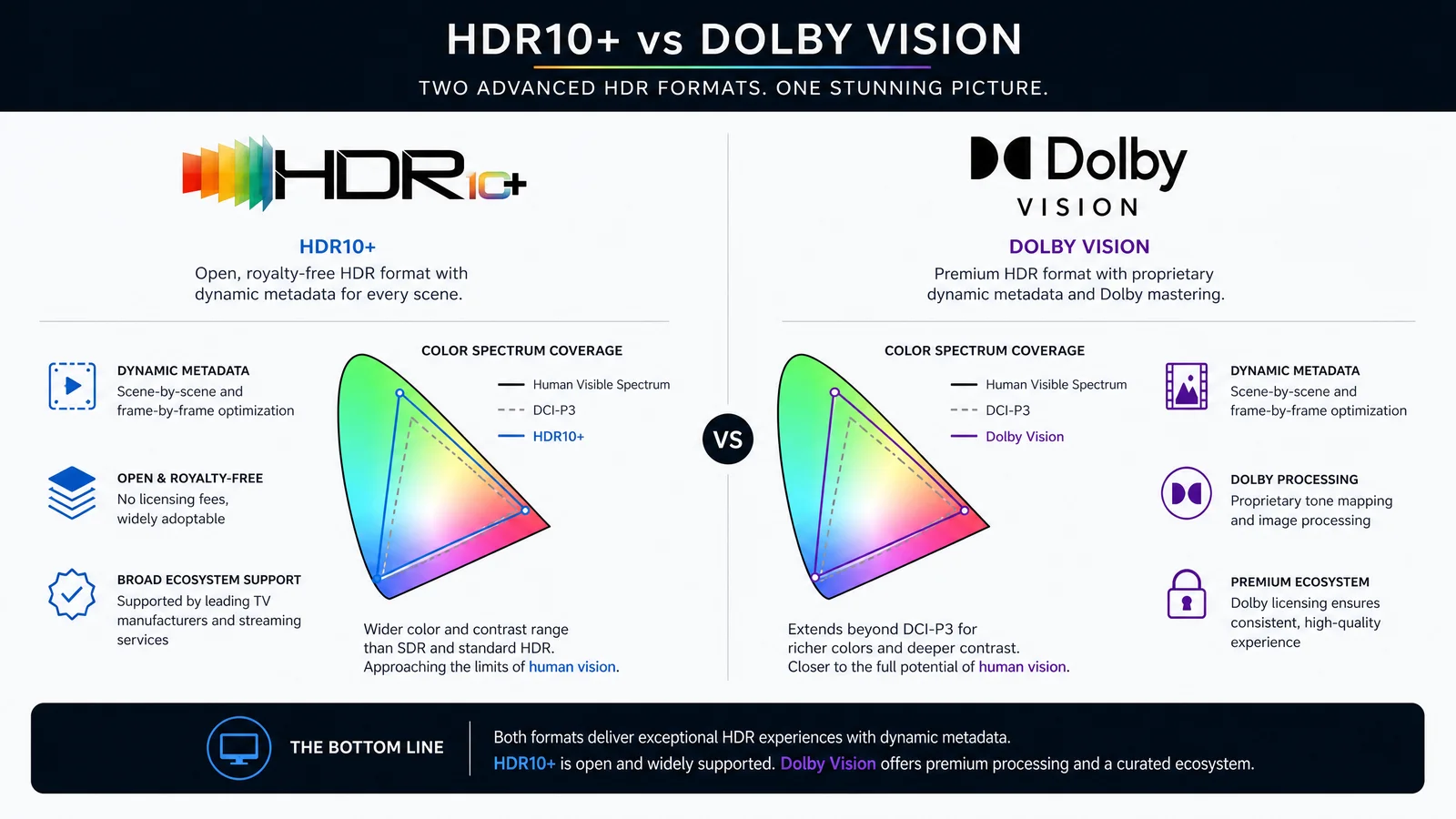
- Dynamic metadata (HDR10+, Dolby Vision): Metadata can change scene-by-scene or frame-by-frame, letting the TV adapt tone mapping to each scene for better preserved detail and highlight roll-off.
Dynamic metadata typically produces better results on displays with limited peak brightness because it lets the TV prioritize different ranges at different moments. Static metadata is simpler and still delivers HDR benefits — it’s the baseline.
HDR10 vs HDR10+ vs Dolby Vision vs HLG
Below is a compact comparison to help you understand the main practical differences.
| Format | Metadata | Color depth | Licensing | Typical usage |
|---|---|---|---|---|
| HDR10 | Static (SMPTE ST 2086, MaxFALL/MaxCLL) | 10-bit | Open/Free | Baseline for UHD Blu-ray and many streaming services |
| HDR10+ | Dynamic (scene-frame level) | 10-bit | Royalty-free for implementers (ecosystem supported) | Streaming (Samsung, Amazon) and some TVs/players |
| Dolby Vision | Dynamic (per frame/scene), advanced grading tools | Up to 12-bit support (authoring) | Licensed (Dolby) | Widely used on streaming platforms and UHD Blu-ray releases |
| HLG (Hybrid Log-Gamma) | No metadata (backward compatible) | 10-bit effective | Open | Live broadcast and streaming where compatibility with SDR is needed |
Notes on adoption and practical impact:
- HDR10 is the universal baseline: every HDR-capable TV supports it.
- Dolby Vision is very common on premium streaming content because it gives content creators finer control; many streaming services offer Dolby Vision streams.
- HDR10+ offers dynamic metadata like Dolby Vision but with different toolchains and an open approach; it’s less widespread than Dolby Vision but supported on many TVs and by some streaming catalogs.
- HLG is used primarily for live broadcast because it doesn’t require metadata and works with SDR chains.
TV requirements: what your set actually needs
To get true HDR performance, a TV needs more than a marketing badge. Key requirements:
- HDR format support: At minimum HDR10. For dynamic metadata benefits, look for Dolby Vision and/or HDR10+ support.
- Panel and backlight capability:
- High peak luminance and effective local dimming (for LCDs) make highlights pop.
- OLEDs have perfect blacks and excellent contrast; newer emissive and QD-OLED panels may handle color volume differently.
- Color gamut and bit depth: A TV should have a wide color gamut (large portion of DCI-P3) and a display pipeline that supports 10-bit (or better) processing.
- HDMI and source compatibility:
- HDMI inputs should support the necessary bandwidth and features; modern HDR workflows are typically delivered over HDMI 2.0/2.1 ports. HDMI 2.1/2.1a adds features like VRR and SBTM (Source-Based Tone Mapping) in some implementations.
- The TV’s firmware and video pipeline must properly recognize HDR signals and apply tone mapping without crushing blacks or clipping highlights.
- Firmware updates: HDR performance can improve with firmware patches that refine tone mapping and metadata handling.
Content availability in 2026
HDR content is widespread across streaming platforms and physical media:
- Streaming: Major services (Netflix, Disney+, Amazon Prime Video, Apple TV+, and others) provide HDR titles — many in Dolby Vision, HDR10, or both. Some services also offer HDR10+ on compatible devices.
- Physical media: UHD Blu-ray usually provides HDR10; some discs include Dolby Vision or HDR10+ as an additional option.
- Broadcast and live sports: HLG is common for live HDR broadcasts because receivers can display it without metadata.
- Games: Modern consoles and PC GPUs support HDR in games; implementation quality varies by title.
Keep in mind availability depends on region, licensing deals, and the device you use (smart TV app vs external streamer vs game console). If a service offers multiple HDR options, the device and app determine which stream you get.
How to enable HDR (step-by-step)
1. Check basic compatibility:
- Confirm the TV supports the HDR format you want (HDR10 baseline; Dolby Vision and HDR10+ listed on spec sheet if available).
- Confirm the source device (console, streamer, Blu-ray player) supports the same format.
- Use a high-quality HDMI cable rated for the HDMI version your devices require (HDMI 2.0 for 4K/60 HDR content, HDMI 2.1 for 4K/120 or wider color sampling scenarios).
- On the TV, enable the “Enhanced”, “HDMI Enhanced Mode”, or “Device Input – enhanced” option for the specific HDMI port if present.
- Streaming devices: in device settings, enable HDR output and set resolution to 4K if appropriate.
- Game consoles/PC: turn on HDR in system display settings; some consoles also have automatic HDR detection for supported titles.
- UHD Blu-ray players: usually pass HDR automatically if the TV supports it; check the player’s video output settings.
2. Use the right cables and inputs:
3. Configure the source:
4. Use the TV’s HDR picture presets:
- Choose “Movie”, “Cinema”, or dedicated “HDR” modes rather than bright/standard modes. These modes typically preserve color accuracy and minimize aggressive post-processing.
5. Optional calibration:
- If you want better accuracy, use professional calibration or a TV’s built-in HDR calibration tools. Many TVs also offer simple HDR brightness or black level sliders.
6. Troubleshooting:
- If the picture looks dim or washed out: check HDMI enhanced mode, disable aggressive contrast features (Dynamic Contrast, Local Contrast off), ensure the source outputs HDR, and update firmware.
- If the TV isn’t switching into HDR: try different HDMI ports, update both TV and source device firmware, and confirm the streaming app supports HDR on that device.
Practical tips for better HDR viewing
- Don’t judge HDR at maximum brightness in a completely dark room — HDR is designed for a range of viewing conditions. Experiment with picture mode and brightness to suit your room.
- For gaming, enable console/game HDR presets but verify tone mapping in-game looks natural — some titles misrepresent brightness and require manual adjustment.
- When comparing TVs, look beyond peak nit claims. Local dimming quality, color volume, and how the TV handles tone mapping (especially dynamic metadata) often determine the perceived HDR quality.
- Keep apps and firmware updated — retailers and manufacturers continue to refine HDR handling via software.
Troubleshooting common HDR problems
- Washed-out colors or dim highlights: often caused by incorrect HDMI input settings or a TV that’s tone-mapping aggressively. Enable enhanced HDMI port mode and choose a proper picture preset.
- Black crush (loss of shadow detail): sometimes caused by incorrect black level or auto-brightness features. Turn off dynamic contrast and auto local dimming features and adjust black level.
- HDR not detected by TV: update firmware, try another HDMI cable, enable enhanced mode for the HDMI port, and check the source’s HDR settings.
- App-specific issues: some streaming apps only send HDR on specific devices; check the app/device compatibility list on the provider’s support pages.
Closing: what matters most when choosing HDR
When shopping or evaluating HDR performance, prioritize:
- Good local dimming or excellent black levels (for contrast)
- Support for the HDR formats you use (Dolby Vision/HDR10+ if you want dynamic metadata benefits)
- Honest color reproduction and a wide color gamut
- A TV that handles tone mapping well — read technical reviews that include HDR tone mapping tests rather than relying on peak nit numbers alone
HDR improves picture realism, but real-world results depend on the entire chain: mastering, metadata, source device, HDMI settings, and the TV’s processing.
FAQ
What HDR format should I prefer for streaming?
If the service offers Dolby Vision and your TV supports it, Dolby Vision often provides the most consistent dynamic metadata handling. HDR10 is universally supported and is the baseline.
Will older HDMI cables cause HDR problems?
Yes. Use a cable that meets the necessary bandwidth for your resolution and frame rate (High Speed/HDMI 2.0 equivalent or better for 4K60 HDR; an Ultra High Speed/HDMI 2.1 cable for 4K120/advanced workflows).
Does HDR use more power or wear out the TV faster?
HDR can increase power draw because of higher peak brightness, especially on LCDs. It doesn’t inherently shorten lifespan if the TV is used normally; manufacturers design for HDR usage.
Why do some HDR movies look different on different TVs?
Differences come from TV peak brightness, local dimming, color volume, and how each TV’s tone mapping interprets static or dynamic metadata. Dynamic metadata (Dolby Vision/HDR10+) can reduce scene-to-scene variation, but implementation still varies by TV.
This article was written and reviewed by the SmartTechTVs editorial team. Read our Editorial Policy and About page.
This article was written and reviewed by the SmartTechTVs editorial team. Read our Editorial Policy and About page.
Related Reading: Samsung vs LG: The Ultimate Smart TV OS Battle