- Quick diagnostic checklist (start here)
- Connection type comparison
- Intermittent drops and router distance/obstacles
- Firmware: TV and router updates
- DHCP lease renewal and IP conflicts
- Channel interference and Wi‑Fi congestion
- Band steering: friend or foe?
- DNS server change
- Wired connection test (troubleshoot the Wi‑Fi)
- Power cycle order and other reboot tips
- QoS settings and traffic prioritization
- Router placement and environment
- Last resorts and escalation
- Troubleshooting flow (summary)
- FAQ
Smart TV Keeps Disconnecting From the Internet? Here’s How to Fix It
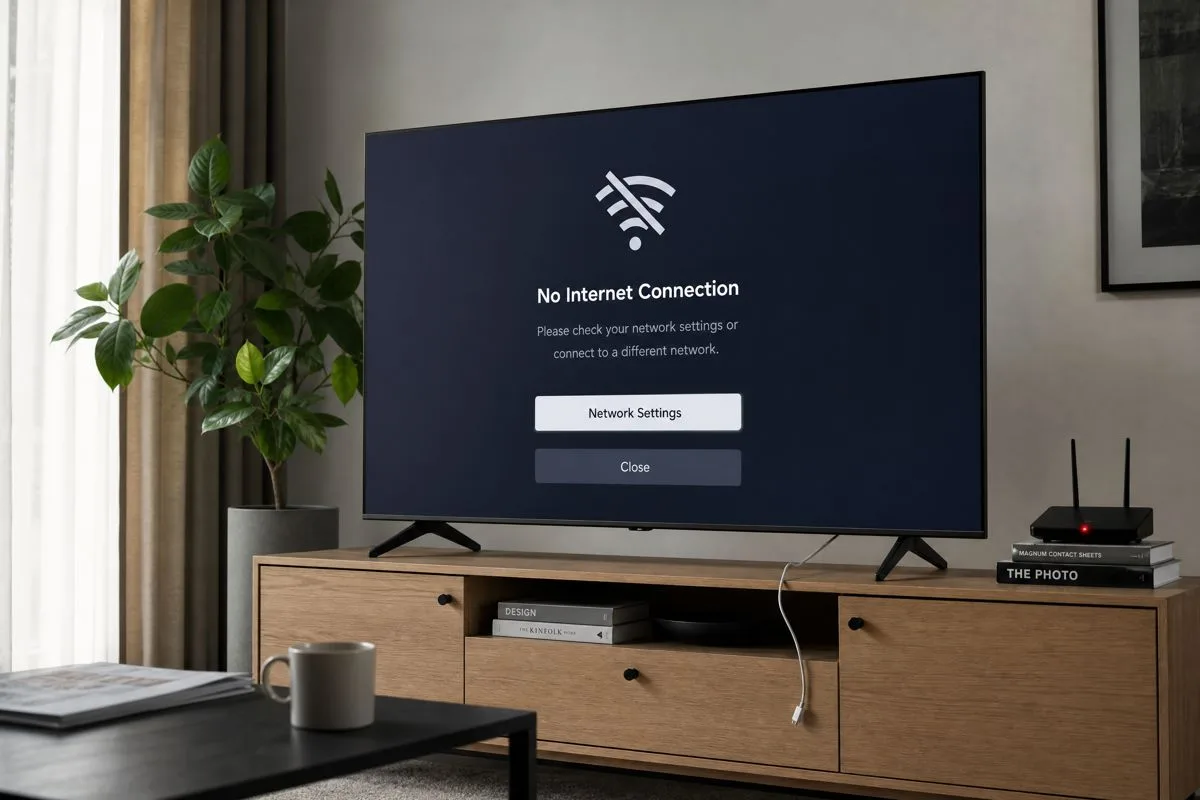
Short intro: A smart TV that drops its Wi‑Fi right in the middle of a show is maddening — but most causes are network-configuration or placement problems you can fix without a technician. Below are practical, step-by-step checks and changes that address the most common intermittent drop causes in 2026 networks.
Quick diagnostic checklist (start here)
- Try a wired Ethernet connection (if available) to confirm whether the problem is Wi‑Fi specific.
- Reboot your modem → router → TV (follow the power cycle order below).
- Temporarily disable band steering or use separate SSIDs for 2.4 GHz and 5 GHz.
- Update firmware on both the TV and the router.
Work through the full sections below if the quick checks don’t stabilize the connection.
Connection type comparison
| Option | Range | Typical reliability | Best for |
|---|---|---|---|
| Ethernet (wired) | Short to long (depends on cabling) | Highest — least prone to drops | Streaming 4K HDR, gaming, troubleshooting Wi‑Fi issues |
| 5 GHz Wi‑Fi | Moderate | High when in range; more sensitive to obstacles | High-bandwidth streaming, low latency |
| 2.4 GHz Wi‑Fi | Long | More interference (crowded) but better penetration | Large rooms, through walls, older devices |
| Powerline / MoCA | Whole home via wiring | Varies with electrical wiring/coax quality | When Ethernet wiring isn’t possible; reliable alternative to Wi‑Fi |
Intermittent drops and router distance/obstacles
Symptoms: TV works when close to the router but disconnects or buffers when placed across the room or in another room.
What to do:
1. Move the router closer to the TV temporarily to see if stability improves.
2. Reduce obstacles: avoid placing routers behind furniture, inside cabinets, or on the floor.
3. Raise the router to a central high position; TV antennas (internal or external) often perform better when the router is elevated.
4. If relocation is impractical, use Ethernet, MoCA (coax Ethernet), or a robust mesh/Wi‑Fi 6/6E node placed nearer the TV.
Practical note: Metal, concrete, and thick plaster walls drastically reduce 5 GHz range; 2.4 GHz penetrates better but is slower and busier.
Firmware: TV and router updates
Why it matters: Firmware fixes bugs, improves Wi‑Fi handling, and maintains compatibility with new router features (Wi‑Fi 6/6E, WPA3, etc.).
How to update:
- TV: Settings → Support/Software Update → Check for updates. Apply updates and restart the TV.
- Router: Log into the router admin web UI or app, check for firmware updates (also consider vendor release notes). Back up current settings before applying a major upgrade.
- After updating, perform a full reboot of the modem → router → TV.
Caveat: Major router firmware updates (especially third‑party or beta builds) can change behavior; if problems start after an update, consult support docs and consider rolling back to a stable release if available.
DHCP lease renewal and IP conflicts
Symptom: The TV loses connection periodically, or reconnects with a different IP then stalls.
Steps:
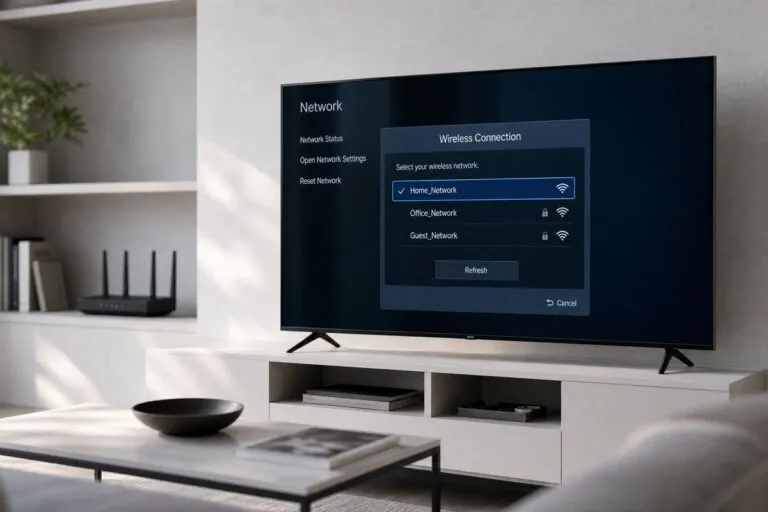
1. On the TV: Network settings usually include a “Renew DHCP Lease” or “Reconnect” option — use it first.
2. In the router: Reserve a static DHCP lease for the TV’s MAC address (often under LAN → DHCP or Address Reservation). This avoids address conflicts and makes QoS rules reliable.
3. If the TV gets a self‑assigned IP (169.254.x.x on many systems), restarting the router and renewing lease usually restores a proper address.
Why reservation helps: It prevents other devices from grabbing the TV’s address after reboots and reduces occasional DHCP server conflicts.
Channel interference and Wi‑Fi congestion
Symptoms: Drops when neighbors are active on Wi‑Fi, or during certain times of day.
How to fix:
- 2.4 GHz: Use channels 1, 6, or 11 (non‑overlapping). Use a Wi‑Fi analyzer app on your phone or laptop to see the least congested channel.
- 5 GHz: Let the router pick a clear channel automatically, or manually choose based on the analyzer. Watch for DFS channels (radar‑sensing) — some routers move channels automatically when radar is detected, which can cause brief disconnects.
- Consider upgrading to Wi‑Fi 6/6E gear to take advantage of less crowded bands and more efficient channel use (6 GHz availability varies by country and regulatory domain).
Practical test: Temporarily set the router to a fixed channel (not Auto) and monitor the TV for a day to see if stability improves.
Band steering: friend or foe?
What it is: Band steering presents one SSID and moves capable devices to 5 GHz.
When band steering causes drops:
- Some TVs prefer 2.4 GHz for stability and will repeatedly attempt to switch back and forth if steered.
- Disable band steering and create two SSIDs (Home‑2.4 and Home‑5) to force the TV onto the preferred band for testing.
- If the TV is more stable on one band, either leave dual SSIDs or adjust band steering behavior in the router.
Tip: When testing, label SSIDs plainly so you can force the TV to a single band and evaluate behavior without router automation.
DNS server change
Why change DNS: Slow or failing DNS lookups can look like “internet drops” because apps can’t resolve streaming servers, even though the link itself is up.
How to change:
- TV: Network → Advanced → DNS. Replace automatic DNS with a public DNS (Cloudflare 1.1.1.1, Google 8.8.8.8, Quad9 9.9.9.9) or your router’s DNS if you prefer a single point of control.
- Router: Set preferred DNS servers in WAN settings to make them apply to all devices.
Test: After changing DNS, restart the TV and try streaming apps. You can also ping the DNS server from a laptop to verify responsiveness.
Wired connection test (troubleshoot the Wi‑Fi)
A quick wired test isolates the problem.
Steps:
1. Connect an Ethernet cable from the router to the TV (or use a laptop at the TV location).
2. If the TV works flawlessly over Ethernet, the Wi‑Fi network is the likely culprit.
3. If Ethernet also fails, test the router’s upstream connection by connecting a laptop to the router and running a speed test or ping to 8.8.8.8.
4. Check link lights on the router and TV Ethernet port; if no link, try another cable or port.
Alternatives: If running cable isn’t possible, MoCA adapters (use coax) or modern powerline adapters provide a wired-like connection without new cabling.
Power cycle order and other reboot tips
Correct order reduces DHCP and routing hiccups:
1. Power off your TV (or disconnect it).
2. Power off the router.
3. Power off the modem (if you have a separate modem).
4. Wait 30–60 seconds.
5. Power on modem → wait for full sync → power on router → wait until its Wi‑Fi is ready → power on TV.
This sequence ensures the router gets a stable upstream connection and can hand out DHCP leases predictably when devices request them.
QoS settings and traffic prioritization
When the network is busy (gaming, large downloads), streaming can suffer.
What to do:
- Enable QoS on the router and prioritize the TV (by device/MAC) or streaming traffic (by application class or ports).
- If your router supports bandwidth reservations or guaranteed streaming lanes, allocate a modest guaranteed bitrate for the TV (e.g., enough for 4K streaming).
- Avoid creating strict rules that throttle other critical services (updates, backups) — balance is key.
Advanced: Use DSCP tagging on managed networks to ensure streaming gets consistent treatment across routers and switches, but keep this only if you understand your network’s QoS pipeline.
Router placement and environment
Best practices:
- Place the router centrally and elevated; avoid basements and inside cabinets.
- Keep it away from microwave ovens, cordless phone bases, baby monitors, and large metal objects.
- Use external antennas if available and orient them to cover the TV’s location.
- If your home is multi‑level, consider a mesh system with a dedicated backhaul or a wired backhaul for best performance.
When to upgrade: If your router is several years old and you have multiple streaming 4K TVs, moving to a modern Wi‑Fi 6/6E router or a managed mesh system will reduce congestion and improve stability.
Last resorts and escalation
- Factory reset the TV network settings and reconfigure Wi‑Fi.
- Reset the router to defaults only if you can reconfigure it or have backup of settings.
- Check your ISP’s status — sometimes intermittent upstream issues look like local drops.
- If problems persist after exhaustive local troubleshooting, ask your ISP for a modem/router check or swap; intermittent physical layer issues (line noise) can cause sporadic drops.
Troubleshooting flow (summary)
1. Wired test to check if problem is Wi‑Fi.
2. Reboot modem → router → TV in the right order.
3. Update TV and router firmware.
4. Reserve a DHCP lease for the TV.
5. Disable band steering; test dedicated 2.4/5 GHz SSIDs.
6. Change DNS to a reliable public service.
7. Check channels and disable Auto for testing; avoid DFS if necessary.
8. Adjust QoS and prioritize TV traffic.
9. Improve router placement or add nodes/MoCA/Ethernet.
10. Factory reset last.
FAQ
Why does my TV reconnect immediately but streaming apps keep failing?
A: The TV can regain link-layer connectivity while higher-level services fail due to DNS, app-level authentication, or slow upstream. Try changing DNS, restarting the app, or reinstalling the app before deeper network changes.
Will disabling band steering really help?
A: Yes for troubleshooting. Some TVs behave better when forced to one band. If stability improves, keep separate SSIDs or adjust your router’s steering thresholds.
Can I set a permanent IP for the TV to stop drops?
A: Use DHCP reservation on the router (preferred) rather than static IP on the TV. Reservation avoids address conflicts and is easier to manage centrally.
Is my old router the likely cause?
A: If it’s several years old and you have many streaming devices, outdated Wi‑Fi standards, or frequent firmware bugs, replacing it with modern Wi‑Fi 6/6E or a mesh system is a highly likely fix.
This article was written and reviewed by the SmartTechTVs editorial team. Read our Editorial Policy and About page.
This article was written and reviewed by the SmartTechTVs editorial team. Read our Editorial Policy and About page.
If you cannot establish a connection at all, refer to Why Is My Smart Tv Not Connecting To Wifi.