- Quick checklist before diving in
- 1) Check the router: power cycle and basic checks
- 2) Re-enter Wi‑Fi password (and check special characters)
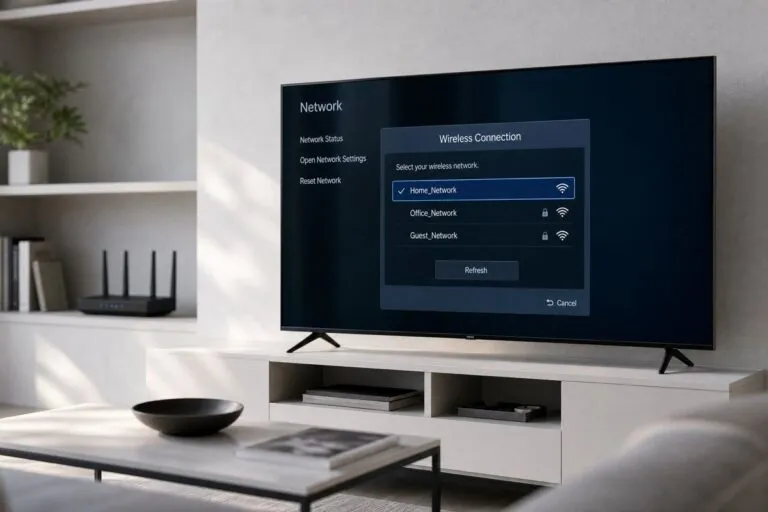
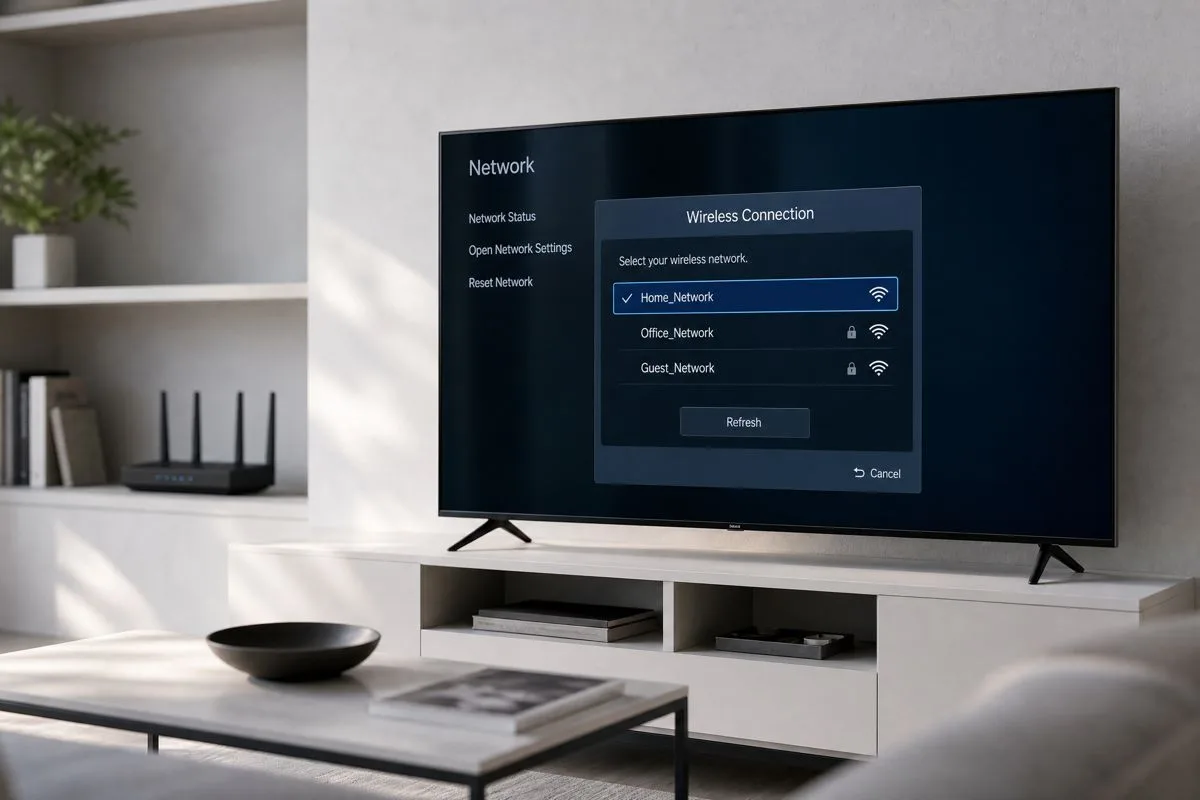
- 3) Forget network and reconnect
- 4) 2.4 GHz vs 5 GHz: pick the right band
- 5) Static IP vs DHCP: when to use a manual address
- 6) DNS issues: swap to a public resolver
- 7) Signal strength and interference: measure and improve
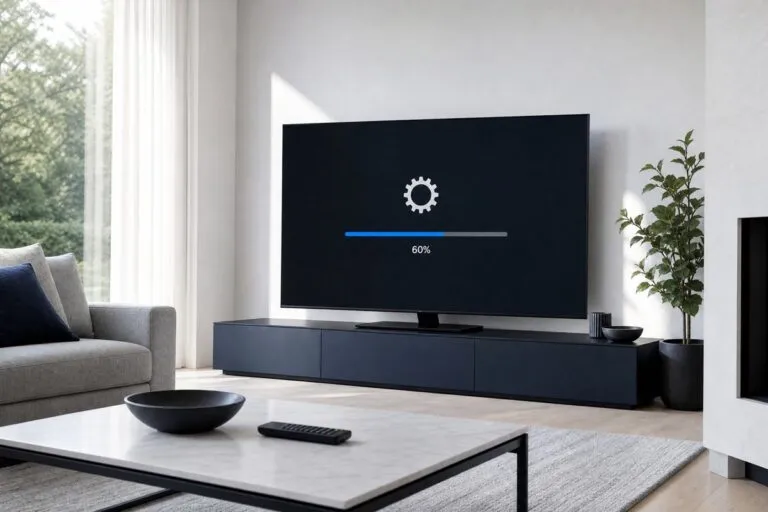
- 8) TV software update: get the latest firmware
- 9) Network reset on the TV: clear everything and start fresh
- 10) Ethernet fallback and alternatives
- Extra notes on security settings and compatibility
- When to contact support or replace hardware
- Summary
- FAQ
Why Is My Smart TV Not Connecting to Wi-Fi? (10 Fixes That Actually Work)
SmartTechTVs.com
A smart TV that won’t join your Wi‑Fi is frustrating but usually fixable. Below are ten targeted fixes—practical, step‑by‑step checks and changes you can make right now to get streaming again.
Quick checklist before diving in
- Confirm other devices can connect to the same Wi‑Fi (phone/laptop).
- Note the TV’s exact error message (authentication failed, no IP, DNS error, etc.).
- Have your router admin password handy and your TV brand/model info for firmware lookups.
1) Check the router: power cycle and basic checks
Why: A stuck router process or temporary DHCP issue is the most common cause.
Steps:
1. Reboot the router and modem: unplug power for 30 seconds, plug back in, wait until all lights stabilize.
2. If you have a separate modem and router, reboot both in sequence (modem first).
3. Log into the router admin page (usually 192.168.0.1 or 192.168.1.1) and check the DHCP client list to see if the TV appears or if the router is out of available IP addresses.
4. Check for router firmware updates—apply them if available.
If reboot fixes it, note the time it happened and monitor for recurrence. If the TV still fails after router reset, continue below.
2) Re-enter Wi‑Fi password (and check special characters)
Why: Typos or changed passwords are easy to miss.
Steps:
1. On the TV, select your network and choose “Enter password” again. Type slowly and use the TV’s on‑screen keyboard; if your remote supports voice input, use it to avoid errors.
2. If your router SSID contains unusual characters, temporarily rename it to a simple alphanumeric name and test again.
3. If you recently changed the router password, update it on all devices to confirm it’s correct.
A mismatch will usually show “authentication failed” or “incorrect password.”
3) Forget network and reconnect
Why: TV network settings can get corrupted; a clean reconnection clears cached credentials.
Steps:
1. Go to Settings → Network → Wi‑Fi → select your SSID → choose “Forget” or “Remove.”
2. Restart the TV (power cycle), then scan and connect to the SSID again using the correct password.
3. For TVs with multiple user profiles or smart OS accounts, repeat for each profile if needed.
This is often effective when the network profile has been updated on the router (SSID change, security change).
4) 2.4 GHz vs 5 GHz: pick the right band
Why: Not all TVs handle both bands equally; 2.4 GHz has range but less speed, 5 GHz is faster but shorter range.
Table: Wi‑Fi Band Comparison
| Feature | 2.4 GHz | 5 GHz | Ethernet (wired) |
|---|---|---|---|
| Typical range | Long | Shorter | Medium (dependent on cable/run) |
| Interference | Higher (microwaves, Bluetooth, neighbors) | Lower | None from RF |
| Speed (practical) | Lower | Higher | Highest and most consistent |
| Best use | Basic streaming, long distance | 4K/120Hz streaming, low-latency apps | Reliable UHD streaming, updates, gaming |
Tips:
- If your router uses the same SSID for both bands, temporarily give them distinct names so you can force the TV onto one band.
- For weak signal at 5 GHz, try connecting to 2.4 GHz or move router/mesh node closer.
5) Static IP vs DHCP: when to use a manual address
Why: DHCP server issues or IP conflicts can leave the TV without a valid address (e.g., TV shows 169.254.x.x).
When to try static IP:
- TV repeatedly fails to obtain DHCP lease.
- Router is low on available IPs or has a buggy DHCP server.
How to set a static IP:
1. Find your router IP (gateway) and DHCP range in the router admin page.
2. Choose an IP outside the DHCP pool but within the subnet (for example, if DHCP assigns 192.168.1.100–199, pick 192.168.1.50).
3. On the TV, go to Network → Advanced → IP settings → Manual and enter:
- IP address (your chosen IP)
- Subnet mask (typically 255.255.255.0)
- Gateway (router IP)
- DNS (try public DNS like 1.1.1.1 or 8.8.8.8)
4. Save and test connection.
If manual IP works, consider reserving that IP for the TV on the router to avoid conflicts.
6) DNS issues: swap to a public resolver
Why: Slow or failing DNS can make it seem like the TV has no internet while IP routing is fine.
Fix:
- On the TV DNS settings, try Cloudflare (1.1.1.1), Google (8.8.8.8), or OpenDNS (208.67.222.222).
- If changing DNS fixes streaming but not device discovery (DLNA, casting), revisit router/DNS settings or consider router‑level DNS overrides.
Note: Some TVs hard‑code DNS or use manufacturer app stores that rely on regional DNS behavior; using a reliable public DNS usually helps.
7) Signal strength and interference: measure and improve
Why: Weak signal causes disconnects, slow buffering, and failed authentication.
How to diagnose:
- Use a phone with a Wi‑Fi analyzer app to measure RSSI near the TV location. Values -50 to -30 dBm are excellent; below -70 dBm is problematic.
- Look for sources of interference: microwaves, baby monitors, cordless phones, metal cabinets, thick walls.
How to improve:
- Move router or add a mesh node closer to the TV.
- Change Wi‑Fi channel to a less crowded one (router admin or auto‑select).
- Replace router antennas or use a more capable router/mesh system for large homes.
- As a quick test, temporarily move the TV or router to see if signal strength improves.
8) TV software update: get the latest firmware
Why: Bug fixes in TV firmware often resolve Wi‑Fi compatibility issues and security changes (WPA/WPA2/WPA3 handling).
How to update:
1. If the TV can’t connect to Wi‑Fi, connect it via Ethernet temporarily and run the update from Settings → Support → Software Update.
2. If Ethernet isn’t possible and the manufacturer supports USB upgrades, download the firmware from the manufacturer site onto a USB and follow their instructions.
3. After firmware update, reboot both TV and router.
Tip: Check the manufacturer’s support pages for known Wi‑Fi issues affecting your TV model.
9) Network reset on the TV: clear everything and start fresh
Why: When individual fixes fail, resetting the TV’s network stack can remove corrupted settings.
What it does:
- Clears stored networks, IP settings, paired devices (casting), and often app sign‑ins related to network accounts.
How to perform:
1. Settings → Network → Reset Network (or “Reset to Factory Network Settings”).
2. After reset, reboot the TV, then reconnect to Wi‑Fi and re-enter credentials.
3. If you use any VPNs or custom DNS at the router level, ensure they’re compatible with the TV.
Caution: You may need to sign back into streaming apps and reauthorize devices.
10) Ethernet fallback and alternatives
Why: Wired connections eliminate wireless variables and are the most reliable solution for streaming and updates.
Steps:
1. Connect a network cable from the router or a nearby switch directly to the TV’s Ethernet port.
2. If the port is unavailable and you can’t run cable, consider:
- Mesh Wi‑Fi with Ethernet backhaul (connect a mesh node to the router by cable and place it by the TV).
- Powerline adapters (performance depends on house wiring; test a short run first).
- High‑quality wireless bridge (useful when you can’t run new cable).
If Ethernet works reliably, the problem is wireless‑specific. Consider replacing aging Wi‑Fi gear or reconfiguring the wireless network for better compatibility.
Extra notes on security settings and compatibility
- WPA3-only networks can block some older smart TVs. If you suspect this, enable WPA2/WPA3 mixed mode or temporarily set WPA2 to test.
- Some TVs and routers support IPv6—if you have problems, try disabling IPv6 on the router to see if the TV prefers IPv4.
- MAC filtering: ensure the TV’s MAC address is allowed in the router if filtering is enabled.
- For streaming routers with “Smart Connect” features that steer devices between bands, disabling that feature and using separate SSIDs can make troubleshooting easier.
When to contact support or replace hardware
- If multiple TVs/devices fail on the same network, the router or ISP is likely at fault—contact your ISP or replace the router.
- If only this TV fails and none of the steps work (and firmware is up to date), contact the TV manufacturer support—there may be a hardware Wi‑Fi module fault.
- Consider an external USB Wi‑Fi adapter only if the TV manufacturer supports it (many smart TV OSes do not support generic adapters).
Summary
Start simple—reboot router and re-enter password—then methodically move through forgetting networks, testing bands, checking signal strength, updating firmware, and finally using wired alternatives. These ten steps cover the most common and the less obvious causes for a smart TV refusing to connect in 2026.
FAQ
Why does my TV show “authentication failed” even when the password is correct?
This usually means the TV and router aren’t agreeing on security settings. Try forgetting the network on the TV, re‑enter the password, and ensure the router is using WPA2 or WPA2/WPA3 mixed mode rather than WPA3‑only.
My TV gets an IP like 169.254.x.x — what does that mean?
That IP is an automatic private address assigned when the TV fails to get a DHCP lease. Reboot the router, check DHCP settings, and consider assigning a static IP or reserving an IP for the TV on the router.
Can I update TV firmware without Wi‑Fi?
Yes. If the TV supports Ethernet, connect it by cable to update. Many manufacturers also provide firmware files you can load via USB; follow their official instructions on the support site.
Should I use Ethernet or Wi‑Fi for streaming 4K HDR?
Ethernet is the most reliable—choose wired when possible for consistent 4K HDR playback and firmware updates. If wiring isn’t feasible, use a strong 5 GHz or a mesh node near the TV for best wireless performance.
This article was written and reviewed by the SmartTechTVs editorial team. Read our Editorial Policy and About page.
This article was written and reviewed by the SmartTechTVs editorial team. Read our Editorial Policy and About page.
Related Reading: How to Use Your Smartphone as a Smart TV Remote