Updating Smart TV firmware can improve compatibility, security, and stability, but an update should be treated as a controlled maintenance task. Menus differ by brand, model year, region, and software version, so record the model number and follow the instructions shown on the TV rather than applying a file meant for another device.
Before starting
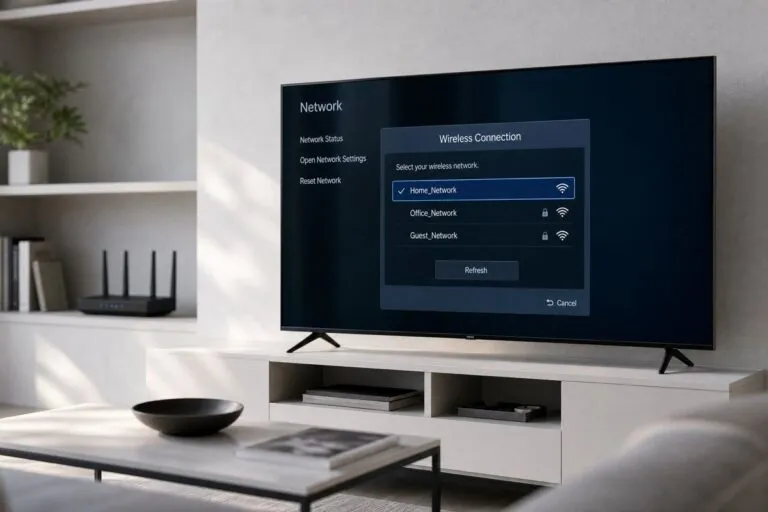
Write down important picture, network, app, and accessibility settings. Make sure the TV has stable power and a reliable internet connection, and do not begin an update during a storm or when the outlet may be interrupted. If the TV is wall-mounted or difficult to reach, make sure the remote and power connection are available.
Use the built-in update menu
Open Settings and look under Support, System, About, or Software Update. Choose the option to check for updates and read the version information before confirming. The names and locations vary, and some TVs offer an automatic-update setting. Enable it only if you are comfortable with the TV installing future firmware when available.
USB updates require extra care
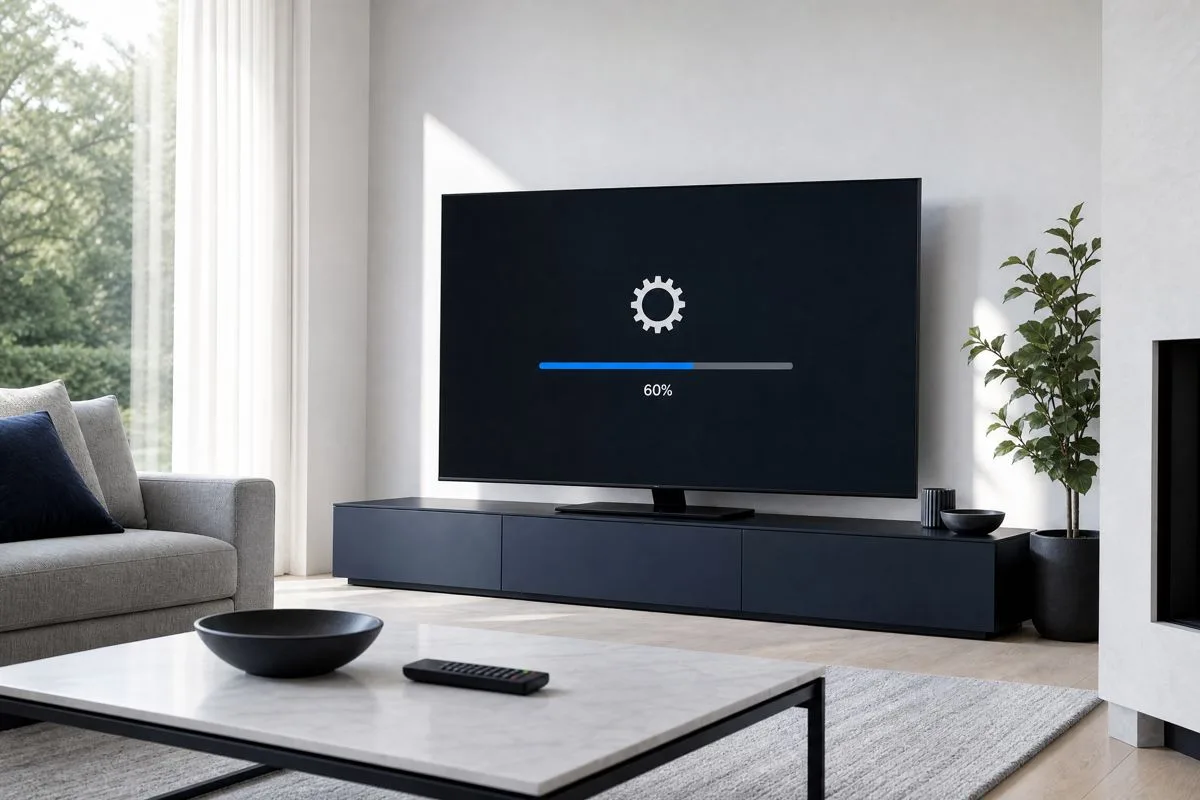
Use a USB package only when the manufacturer specifically provides it for your exact model and region. Verify the file source, model code, version, and installation instructions. Never rename or modify the package unless the manufacturer tells you to, and do not remove the USB drive or disconnect power while the update is running.
After the update
Allow the TV to restart fully, then test the home screen, apps, HDMI devices, audio output, Wi-Fi, and any picture mode you use. Some updates reset individual settings or change menu names. Re-enter only the settings you understand, and avoid assuming that a new firmware version improves every picture characteristic.
If an update fails
- Do not repeatedly interrupt the installation.
- Wait for the TV to complete any recovery or restart process shown on screen.
- Check the model-specific support page from another device.
- Try a stable network or the official USB method if supported.
- Contact the manufacturer if the TV will not boot or displays an update error.
Safe update rule
The safest firmware update is the one verified for the exact TV model, installed with stable power, and followed by a short functional test. If the TV is working normally and the update is optional, read the release notes and support guidance before deciding when to install it.
Related Reading: How to Update Your Smart TV Software (and Why You Should)